
You have a 60-second investor update recorded on your phone and a lead investor who needs to hear it in Japanese before tomorrow's call. You search for help, and almost every tutorial teaches video dubbing, not memos. That gap is why the question of vclar vs descript for translating a voice memo is narrower than it first looks.
Descript is a strong tool, and its own tutorials show where it is strongest. Translation there is framed around video: you translate, dub, and export a project. If your input is a quick audio note, that workflow includes steps a memo may not need.
This guide gives you a step-by-step path for audio-only memos. You'll get the verdict first, then a side-by-side table, then both workflows broken into steps. Along the way, watch for one detail: a single change in step order changes what your listener actually hears.
For the feature-by-feature breakdown, see the full VClar vs Descript comparison. This article stays focused on the translation workflow. If you send updates like this every week, start with the guide to voice notes for founders.
Which Is Faster for Translating a Voice Memo, VClar or Descript?
For a short, audio-only voice memo, VClar has fewer steps because it cleans and translates in one flow while keeping your own voice. Descript is built around a project-based video translation and dubbing workflow, which adds steps a memo doesn't need.
Clean-then-translate is a workflow that removes filler words, fixes spoken grammar, and reduces background noise before the speech is translated. AI dubbing is the process of generating a synthetic voice track in another language to play over a video.
Think of it like sending a letter abroad. You can proofread it and hand it to a translator, or you can book a film dubbing studio. Both work, but only one fits a quick note.
VClar's flow takes four steps:
- Record or upload your memo.
- Clean it: fillers, spoken grammar, and noise.
- Translate it in your own voice.
- Deliver the message.
Descript's flow, per its tutorials, takes five steps:
- Create a project.
- Generate the transcript.
- Translate.
- Apply AI dubbing.
- Export.
Why does step order matter for a voice memo? When cleanup happens before translation, the ums, false starts, and tangled sentences of a spontaneous recording are removed first, so the translated version carries only your intended message. When translation happens on raw speech, those hesitations can carry into the output, and you either fix them afterward or send them as-is. Fewer steps also means fewer handoffs between tools and file formats. For a 60-second memo, a single record-to-delivery flow removes the project setup and export stages that video workflows need for timelines and visuals.
VClar supports 11 languages and 110 translation directions, so the same memo can reach investors, clients, or teammates in their own language.
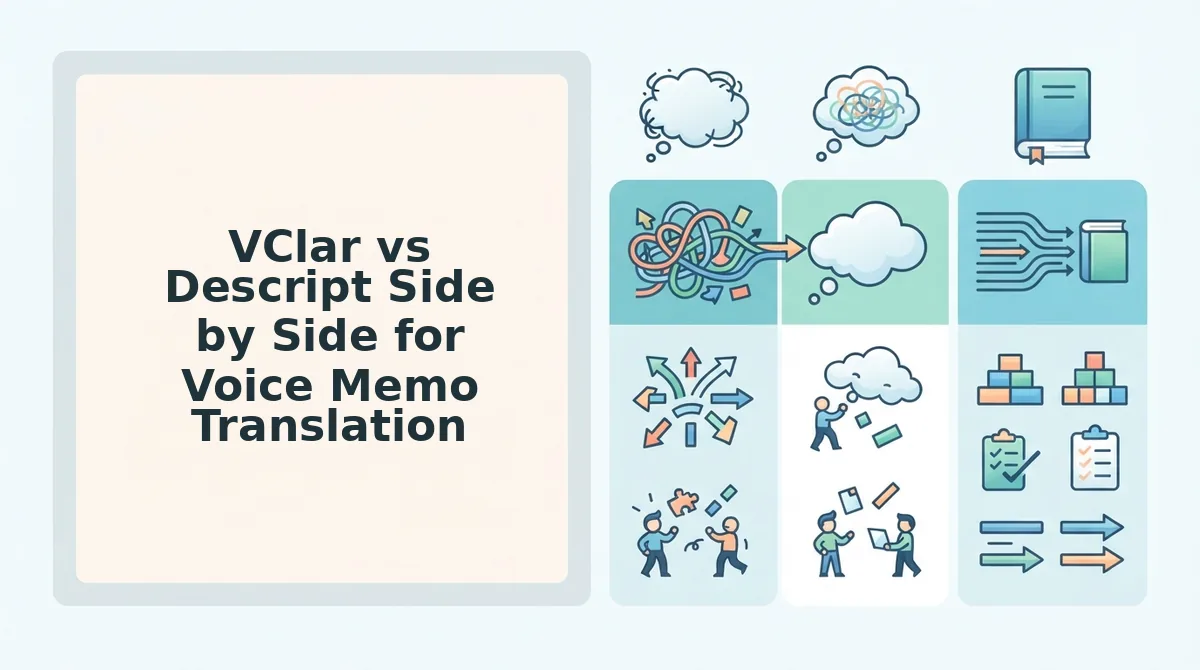
VClar vs Descript Side by Side for Voice Memo Translation
VClar fits voice memos that should stay voice messages in your own voice. Descript fits video projects that need dubbing, captions, and lip sync. The real deciding factor is output type: a cleaned voice message, a dubbed video, or an edited podcast. The table compares both on documented capabilities.
Spoken grammar correction is the automatic fixing of grammar errors that happen in natural speech, such as broken sentences or mismatched tenses, without re-recording. Descript takes a transcription-first approach, as its "Turn Any Audio into Text Instantly" tutorial shows, so edits happen through the transcript and timeline.
| Criteria | VClar | Descript |
|---|---|---|
| Best input | Voice memo | Video project |
| Output | Cleaned voice message in your own voice | Dubbed video with captions |
| Voice identity | Preserves natural tone, accent, and rhythm | AI dubbing voice |
| Cleanup before translation | Filler removal, spoken grammar correction, noise reduction | Transcript and timeline editing |
| Editing skill needed | Record or upload; cleanup runs in the flow | Comfort with projects, transcripts, and timelines |
| Languages | 11 languages, 110 directions | 30+ languages (Descript's own claim) |
| Lip sync and on-screen text | No | Yes |
| Steps to deliver | 4 | 5 |
Descript's strengths are real. Broader stated language coverage, lip sync, captions, and transcript-based editing make it a capable choice for visual content. VClar does not offer lip sync or on-screen text, because it is built for voice messages.
- Best for voice messages: VClar, for founders, sales teams, and cross-border operators sending memos in their own voice.
- Best for dubbed video: Descript, for creators and marketing teams localizing video with captions and lip sync.
- Best for podcast edits: Descript, for producers who prefer editing audio through a transcript.
If your memo is full of hesitations, start by learning how to remove filler words from audio. Then translate the clean version so your listener hears one decisive take.
Next, see how Descript translates a voice memo step by step.
How Descript Translates a Voice Memo
Descript translates a voice memo through its video-first workflow: you create a project, transcribe the audio, choose a target language, apply AI dubbing, and export. The path works well, but several steps are designed for video rather than a short audio note.
Prerequisites: a Descript account on a plan that includes translation and AI dubbing, the desktop or web app, and your memo as an audio file. These steps follow Descript's "Translating and dubbing your video" tutorial. Verify against current Descript docs, since menu names may change.
- Create a new project. Open Descript and start a new project. You should see an empty project ready for media.
- Import or record your memo. Drag in your audio file, or record directly in Descript. Recording a 60-second memo takes about one minute. You should see the clip on the timeline.
- Get the transcript. Let Descript transcribe the audio. You should see editable text that matches your speech.
- Choose a translation language. Open the translation option and pick your target language. Descript says it supports 30+ languages. You should see a translated version of the transcript.
- Apply AI dubbing. Generate translated audio with an AI dubbing voice. You should hear the memo spoken in the new language.
- Add video extras (optional). Descript's webinar covers captions, lip sync, and on-screen text translation. A 60-second audio memo has no face or on-screen text, so you can skip this step.
- Export the result. Export the translated file in your chosen format. You should get a downloadable file you can send.
For a quick memo, steps 1 and 6 are the overhead. You build a project and pass video options you will not use. This setup earns its keep on a full video, not a one-off voice note.
How VClar Translates a Voice Memo by Cleaning First
VClar translates a voice memo by cleaning it first. It removes filler words, fixes spoken grammar, and reduces noise, then translates the polished message while keeping your own tone, accent, and rhythm.
Prerequisites: a VClar account at vclar.com, a microphone or an existing audio file, and your target language. No project setup or timeline is needed.
- Record or upload your memo. Speak your message in one take, or upload raw audio. A 60-second memo takes about one minute to record. You should see your audio ready for processing.
- Remove filler words. Let VClar cut ums, ahs, "like," "basically," "you know," and repeated false starts. You should hear a more decisive version with no awkward gaps.
- Fix spoken grammar and tighten phrasing. Apply grammar correction so fragments become complete sentences. Learn more about how to fix grammar in voice messages. You should see a clean, readable transcript.
- Reduce acoustic distractions. Strip background noise, breath sounds, and mouth clicks. You should hear clear speech with no room hum.
- Translate the cleaned message. Pick one of 11 languages: Hindi, English, French, Japanese, Korean, German, Russian, Portuguese, Spanish, Italian, or Chinese. That gives you 110 translation directions. You should hear the message in the target language with your natural tone, accent, and rhythm.
- Send the message. Share the translated audio and transcript. The recipient gets one polished message, with no re-recording loop on your side.
Why Clean Before You Translate?
You should clean a voice memo before translating it because translation carries everything in the recording, including the mess. If your English memo contains "um," a false start, and a half-finished sentence, a translator renders those flaws faithfully into German, Japanese, or Spanish. The listener then hears hesitations and fragments in their own language, which can sound less certain than you meant. Cleaning first removes fillers, repairs grammar, and tightens phrasing, so the translation engine works from a clear source. The listener gets a shorter, more direct message that reflects what you meant to say, not how you stumbled while saying it.
Before cleaning: "So, um, basically I wanted to, like, I wanted to follow up on, you know, the pricing thing."
After cleaning: "I wanted to follow up on the pricing proposal."
Worked Example: Sales Follow-Up From English to German
A B2B sales rep records a follow-up for an enterprise buyer in Germany. They speak freely in English, let VClar strip the fillers and false starts, fix the grammar, and remove office noise. Then they select German and send. The workflow fits naturally into voice notes for sales.
Run the "whose voice?" test: when the buyer presses play, whose voice do they hear? With VClar, they hear the rep's own tone and cadence, not a generic generated voice.
Where VClar Falls Short and When Descript Is the Better Pick
VClar is built for voice messages, not video production. If your project needs dubbing, lip sync, or timeline editing, Descript is the better tool.
- No video dubbing. VClar translates voice messages and transcripts, not video soundtracks. If you need a translated track laid under existing footage, use Descript's AI dubbing.
- No lip sync. VClar does not match mouth movements to translated speech. On-camera content that needs to look natural in another language belongs in Descript.
- No on-screen text translation. VClar does not touch titles, lower thirds, or captions burned into video. Descript's webinar lists on-screen text translation as part of its workflow.
- No timeline-based editing. VClar has no multitrack timeline for cutting video or producing podcast episodes. Producers who arrange scenes, music, and guests should work in Descript.
- Fewer languages. VClar supports 11 languages, while Descript claims 30+. If your audience speaks a language outside VClar's list, Descript may be your only option of the two.
Worked example: A YouTuber dubbing a full 15-minute video into Spanish, with captions and lip sync, should choose Descript. A freelancer sending a 60-second project update to a client in Japan should choose VClar, since cleaning and translating one message is the whole job. See how that fits voice notes for freelancers.
So which tool fits your next memo?
Which Should You Use to Translate Your Next Voice Memo?
Use VClar when your translated voice memo should still sound like you, and use Descript when you're producing video that needs dubbing or lip sync.
That settles the founder's Japanese investor update. VClar strips the ums and false starts, fixes the spoken grammar, then delivers Japanese that keeps the founder's own tone, accent, and cadence. One take, heard in their voice.
Three moves for your next memo:
- Clean before you translate. Fillers and broken grammar carry straight into the target language.
- Pick by output type. Voice messages go to VClar. Video that needs dubbing goes to Descript.
- Check language coverage first. VClar supports 11 languages, so confirm yours is on the list before recording.
You don't need any editing skills, because VClar involves no timeline editing. Record or upload, and the cleanup happens for you. Sending on WhatsApp? See how to translate WhatsApp voice notes.
Record your next update once and translate it at vclar.com. A translated voice memo only lands when it still sounds like the person who recorded it.