
You hit translate, and your recipient gets word salad. Most voice note translator mistakes happen before translation even starts, inside the raw recording.
A voice note translator produces garbled results when it receives filler words, sentence fragments, false starts, self-corrections, background noise, rambling, and transcripts nobody reviewed. Each flaw gets transcribed and then translated literally into another language, so the recipient reads your hesitations as content.
Picture a founder who records an investor update in one take and runs it through a translator for a foreign investor. Every "um," restart, and half-finished thought becomes a sentence the investor has to decode. That risk is why clean voice notes for founders matter.
The fix lives in the recording, not in a new app. Below are the seven mistakes, a clean-then-translate workflow, a 10-second check, and the reason switching engines rarely helps.
Key Takeaway: Most garbled translations trace back to the raw recording. Fillers, fragments, and noise get transcribed and then translated literally. Clean first, then translate.
Why Do Voice Note Translations Come Out Garbled?
Voice note translations come out garbled because translators convert exactly what the transcript says. Recording errors become translation errors. A voice note translator is a tool that transcribes spoken audio into text and then renders that text in another language.
Every translation passes through the Error Cascade. Each stage amplifies the mistakes of the stage before it:
- Capture: Your microphone records your words along with hesitations, restarts, and room noise.
- Transcribe: Speech recognition converts that audio into text. It writes down fillers and guesses at muffled words.
- Translate: The engine confidently translates the transcript, including every guess and stray word.
Think of it like photocopying a smudged page. A sharper copier still reproduces the smudge. In the same way, a better translation engine cannot recover words that were never captured.
The top causes of garbled voice note translations are three speech habits and a noisy setting. Filler words are sounds and phrases like "um," "like," and "basically" that carry no meaning but still get transcribed. Sentence fragments are incomplete thoughts that lack a subject or verb, so the translator has to guess the structure. False starts are phrases you begin, abandon, and restart, which leaves two competing sentences in the transcript. Background noise from cars, cafés, or fans causes misheard words that the translator treats as fact. Spontaneous speech is naturally messy, and every speaker produces some of these.
Stop switching translators. Fix the recording. Once the audio is clean, a voice note translator in 11 languages like VClar can carry your message across 110 translation directions without inheriting the clutter.
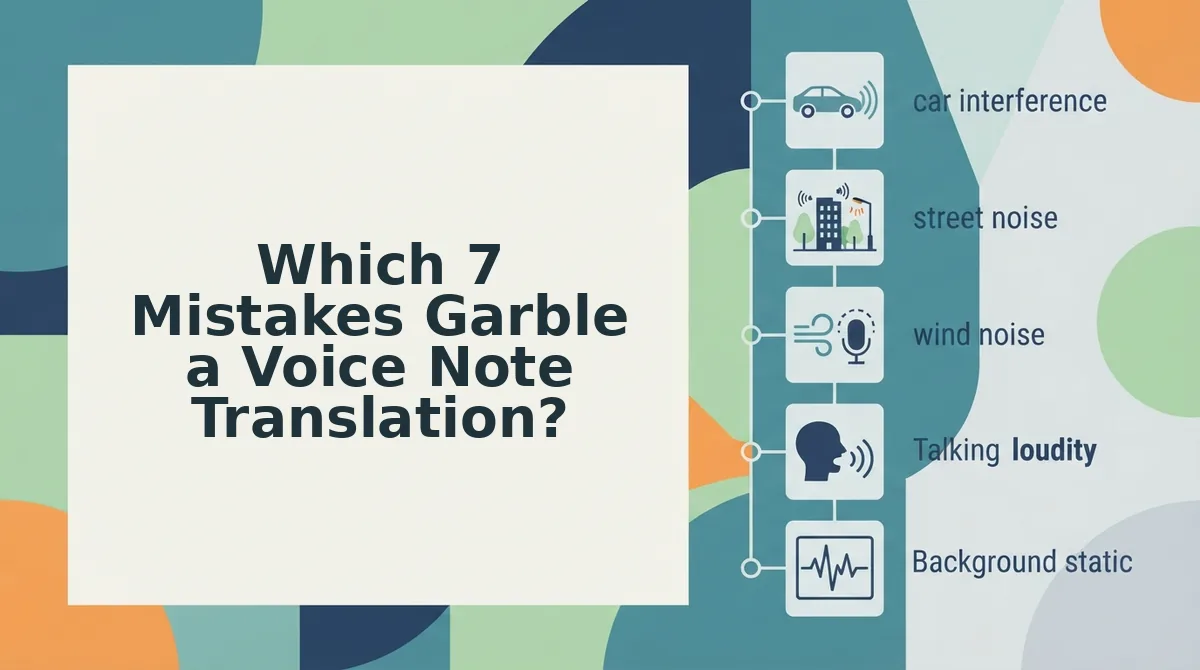
Which 7 Mistakes Garble a Voice Note Translation?
Seven mistakes garble a voice note translation: fillers, fragments, background noise, self-corrections, rambling, skipped transcript reviews, and sending text when your voice matters. Each one traces back to a specific transcription failure.
- Translating filler words. Transcription records "like" and "basically" as real words, and the translator renders them literally. Before: "So, like, the demo is basically ready." After: "The demo is ready." Fix: remove filler words from audio before you translate.
- Leaving sentence fragments and false starts. Half-finished thoughts give the translator no clear subject or verb. It guesses the structure and produces broken syntax. Fix: make sure each sentence is complete, or fix grammar in voice messages automatically.
- Recording over background noise. Road noise, keyboards, and fans blur consonants, so speech recognition substitutes similar-sounding words. The translator then renders those words without hesitation. For example, a sales rep might record an enterprise follow-up in the car, where engine hum could turn a price or product name into the wrong word in fluent, confident text. Fix: reduce noise before transcription.
- Keeping self-corrections. "Tuesday, no, Wednesday" stays in the transcript as two dates, and the translation repeats both. Speech recognition cannot tell which date you meant. Fix: cut the wrong version so only your final answer remains.
- Rambling past the point. Long, looping messages bury the main request and create more chances for misheard words. Listeners also lose the thread faster in a second language. Fix: aim for 45 to 90 seconds, the message length VClar is built for.
- Never reviewing the transcript. Speech recognition rarely flags its own guesses, so any error you miss gets translated as fact. Fix: compare the original and cleaned versions side by side before you send.
- Accepting text when the listener needs your voice. WhatsApp voice-to-text output removes tone, warmth, and emphasis, so a friendly note can read as curt. Fix: send cleaned audio instead. It stays in your own voice, because VClar does not clone voices or use synthetic avatars.
Most of these fixes can happen before you hit translate. VClar reduces background noise, breath sounds, and mouth clicks while preserving your tone, accent, and rhythm. It also removes fillers and corrects spoken grammar, so the translator receives a clean message.
The next section shows how to run that workflow from recording to translation.
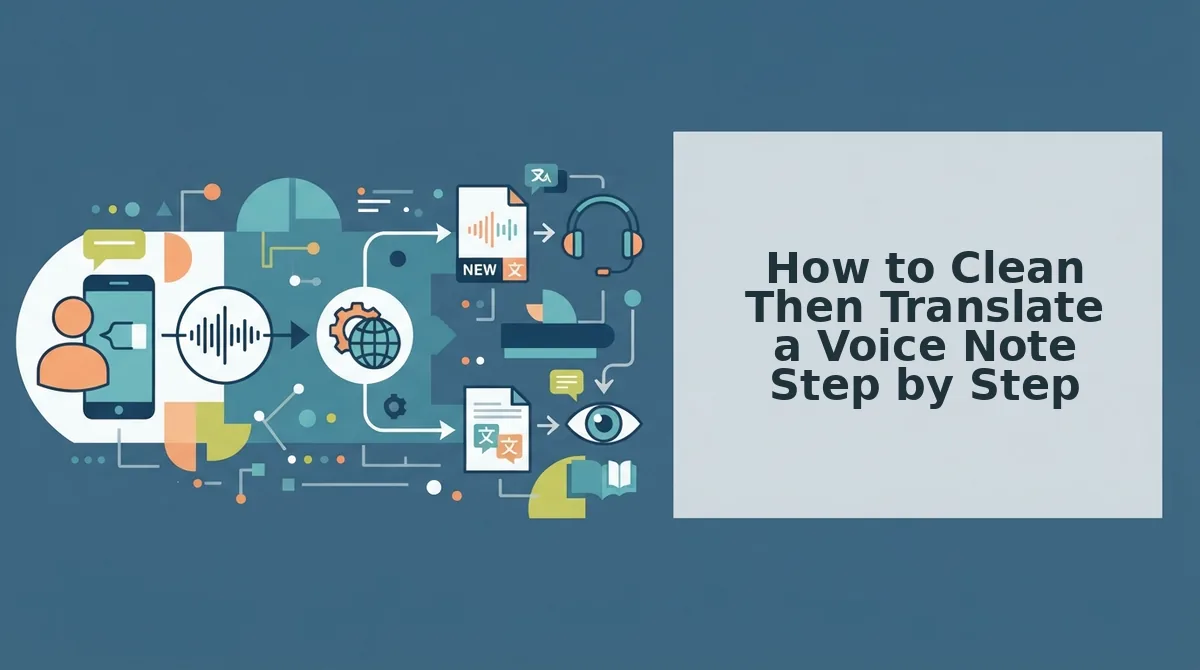
How to Clean Then Translate a Voice Note Step by Step
Clean the voice note before you translate it. Cleanup after translation fixes nothing upstream, because the translator has already turned your fillers, false starts, and background noise into wrong words in the target language.
What is clean-then-translate? Clean-then-translate is a two-stage order for multilingual voice messages. First, the raw recording is cleaned: filler words like "um" and "you know" are removed, fragments and self-corrections are resolved into one clear statement, and background noise, breaths, and mouth clicks are reduced. Second, only that cleaned version is translated into the target language. The order matters because a translator processes whatever it hears, including your hesitations. Cleaning first gives it a single, grammatically complete message, so the output carries your intended meaning instead of a literal rendering of your rough first draft.
Before you start: you need a phone or computer microphone, a quiet room, and a voice cleanup and translation tool such as VClar.
- Record in one take in a quiet spot, keeping it to 45-90 seconds. You should end up with a single audio file that holds one complete thought.
- Run cleanup to remove fillers, fix fragments and self-corrections, and reduce noise (usually under a minute). You should hear a tighter message in your own voice.
- Review the side-by-side transcript for 30 seconds. Every date, name, and number should appear once, in its final form.
- Translate the cleaned version into your target language. You should see a translated transcript that matches your corrected meaning.
- Send the audio in your own voice, with the transcript attached if the listener prefers reading.
Worked example: A consultant records a project update for a client in Japan, runs cleanup, and confirms the revised deadline in the transcript. They translate it into Japanese and send the audio with the transcript attached.
Timeline editors make you cut each "um" by hand. Clean-then-translate works without timeline editing, and one-take confidence ends the re-record loop for good.
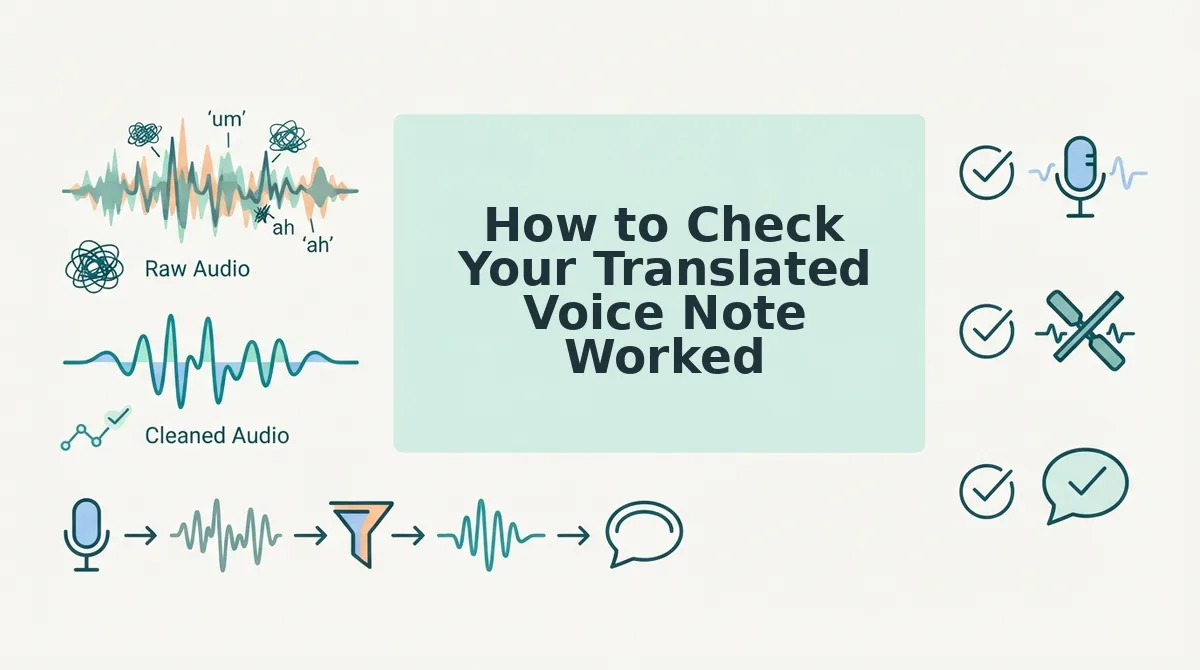
How to Check Your Translated Voice Note Worked
Match what your listener noticed to its cause in the table below. Each symptom traces back to one of the seven mistakes, so you can diagnose a garbled translation in about 10 seconds.
| What the listener sees | Mistake that caused it | Fix before translating | VClar feature |
|---|---|---|---|
| Literal nonsense words | Filler words left in | Strip fillers | Filler word removal |
| Two conflicting dates | Uncorrected self-corrections | Keep only the final version | Spoken grammar fixing |
| A random wrong word | Background noise | Reduce noise | Noise, breath, and click reduction |
| Broken word order | Sentence fragments | Complete each sentence | Phrasing tightening |
| Flat, robotic tone | Text-only output | Send audio in your voice | Tone and accent preservation |
Best for: timeline editors such as Descript suit podcasters who need frame-level control. Clean-then-translate suits founders and sales teams who send quick multilingual updates.
- Read the transcript side by side with the translation.
- Confirm that every date, number, and name appears once.
- Play the audio once before sending.
Fix the Recording Before You Blame the Translator
Most garbled voice note translations start in the recording, not in the translator. The translation engine converts what it hears, so the real fix happens before you choose a target language.
Make three habits your default:
- Follow the 5-step clean-then-translate order.
- Scan the diagnostic table whenever a listener seems confused.
- Keep messages to 45-90 seconds.
Concerned about your tone or accent? VClar preserves your natural tone, accent, and rhythm. It never swaps your voice for a synthetic clone.
Your next step: try VClar to clean and translate a voice note in your own voice across 11 languages and 110 translation directions. Record once, clean it, and let your meaning arrive in any language exactly as you intended.