
You finish a 90-second voice memo, thumb hovering over Send, and the pause is not about the content. Somewhere in the middle sit two "ums," a false start, and a fan humming in the background â and you are deciding whether to re-record or ship it as is.
Choosing between AudioPen and VClar starts with a fact most comparisons skip: the same recording has two different jobs depending on whether your recipient will read it or hear it. Both tools get filed under "voice note AI," and almost every listicle ranks features without ever asking who receives the file.
Here is the way out in four steps, no feature table required. Before you read on, line up one real note you send daily and one real recipient for it â the test only works against a specific message. Later we will tackle the question almost nobody asks before paying: whether a voice tool hands back a voice note at all, which settles the decision outright for anyone who sends audio rather than keeping notes. Start with the AI voice message translator overview if you want the product context first.
What Does Each Tool Actually Hand Back?
AudioPen returns cleaned, structured text and nothing you can play. VClar returns enhanced audio plus a transcript, and can translate that audio into another language.
Answer box: AudioPen produces a written note in a style you choose and does not give you an enhanced voice note back. VClar produces enhanced audio plus a transcript, preserving your tone, accent and rhythm rather than replacing your delivery.
Three things to have ready before you start: one real voice note you send daily, one real recipient for that note, and both vendors' current pricing pages open in a tab. Figures move, so this article does not quote them â check the source before you commit.
- Record or upload in AudioPen and select a style (about 3 minutes). Open AudioPen, click record or upload the file, choose a formatting style, then export. You should end up with a text note and no downloadable audio beside it.
- Upload the same file to VClar and run the cleanup (about 2 minutes). Drag the file in, apply the enhancement pass, then download. You should hear your own voice, not a synthetic substitute, with the fillers and restarts gone.
- Compare the two artifacts against your recipient (about 1 minute). Play the VClar audio while reading the AudioPen text. One of the two will match how that person actually consumes messages.
| What you get back | AudioPen | VClar |
|---|---|---|
| Artifact produced | Cleaned text note in a chosen style | Enhanced audio plus transcript |
| Timeline editing required | None | None |
| Tone, accent, rhythm | Not applicable â text only | Preserved; the delivery stays yours |
| Translation of the note | Not applicable â text output | 11 languages, 110 directions |
| Fits best | Notes you keep | Notes you send |
Neither tool asks you to edit a timeline, which is the objection most people carry over from video editors. For the longer breakdown, read the voice vs text comparison or see VClar vs AudioPen side by side.
How Do You Run the Recipient Test Step by Step?
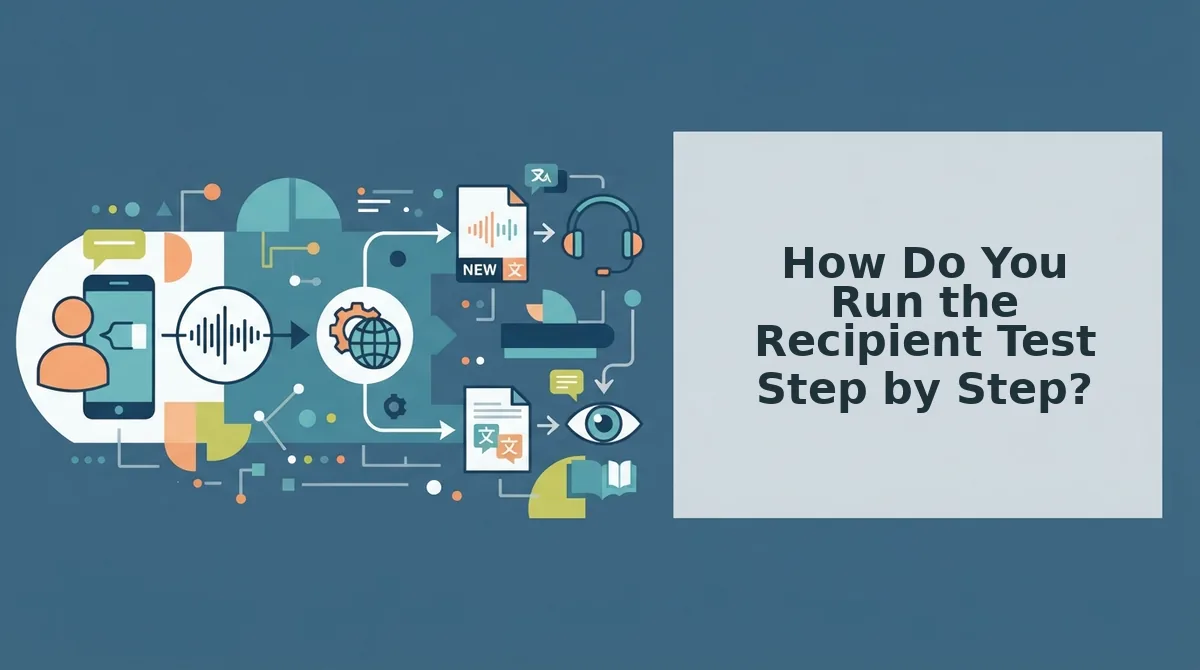
The Recipient Test is a four-step check that maps one real voice note to one real recipient. You answer two questions â will they read it or hear it, and is the raw delivery or the wording the problem â and each step ends with a pick.
You need your one real note, the person who receives it, and a browser. Ten minutes total.
- Name the recipient and the channel (1 minute). Open the thread where the message actually goes and write down both the person and the surface â a WhatsApp voice note, a Slack channel, an email attachment. You should end up with one channel, because the artifact has to survive that channel's limits.
- Ask whether they will read it or hear it (1 minute). Answer in a single word. A reader needs structured text; a listener needs audio that plays cleanly. If the answer is "hear," the tool has to output audio â that alone narrows the field.
- Ask whether the raw delivery is the problem or the wording (2 minutes). Play the note back once and listen for fillers, restarts and room noise. Be fair here: AudioPen is the better tool for solo thinking, structured text styles and press-and-hold capture on Mac, as Louis Pereira's Mac walkthrough and Tim Verdouw's review show. But no text style fixes a delivery problem.
- Check the language pair before you commit (1 minute). Confirm the recipient's language against the tool's list. If the note crosses borders, VClar's voice note translator across 11 languages works on the cleaned audio itself â 11 languages across 110 directions â instead of on a typed transcript.
That is where the daily sender diverges from the note-keeper: clean the delivery first at the filler words remover, then fix grammar in the voice message itself, so the recipient hears one confident take rather than a transcript of a rough one.
Filler removal and grammar repair are different jobs from transcription, and that distinction decides most purchases. Transcription converts sound to words; it keeps every "um" and half-restart because those are part of the recording. Filler removal edits the audio timeline so hesitations and false starts disappear without a re-record. Grammar repair goes further, correcting spoken phrasing that reads fine on paper but sounds unfinished aloud. Neither step happens when a tool only hands back text â the words arrive cleaner, the delivery does not. If your objection to sending voice notes was never the wording, transcription alone will not solve it.
Once you have made the call, the next question is whether it survives contact with a real send.
How Do You Check the Choice Worked Before You Send?
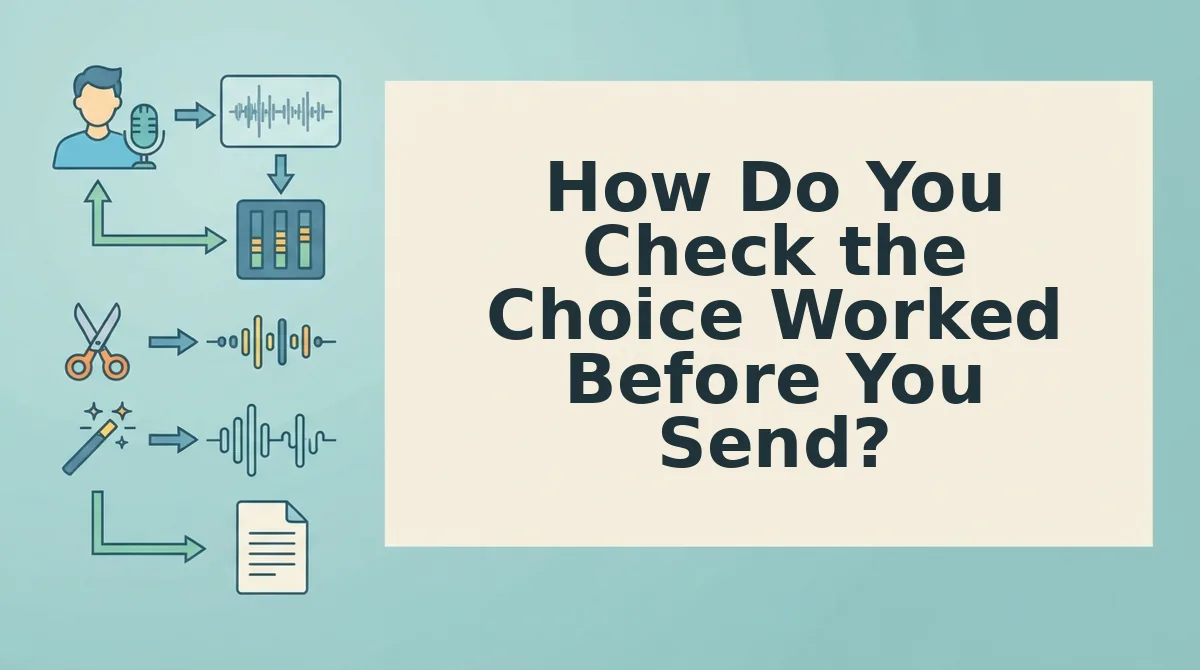
Run four pass/fail checks before hitting send: play the note once on a phone speaker, count the filler words that survived, confirm the message is in the recipient's language, and confirm you never opened a timeline. The whole pass takes under two minutes.
What you need first: the cleaned audio file, the original raw take for comparison, a phone, and one browser tab open on the filler word counter.
- Open the cleaned note on your phone and play it once through the speaker. Hold the phone at arm's length instead of using headphones. You should hear every sentence land without leaning in â this mirrors how most recipients actually hear a message, and it catches level drops that laptop speakers hide.
- Upload the raw take and the cleaned take to the filler word counter. Run each file separately and write both numbers down. You should see the cleaned count lower than the raw one; if it is not, removal missed something and the note needs a second pass.
- Confirm the language before anything else. If you translated, listen to the first ten seconds and check you hear the recipient's language, not yours. You should hear the target language immediately with no English lead-in left in place.
- Confirm you never opened a timeline. Check that the entire job happened in a browser tab, with no clip dragging or track stacking. Choosing a browser-first alternative to timeline editing is the workflow difference that ends re-record loops for good â there is nothing to fix by hand, so there is nothing to redo.
Can you tell whether a voice note is ready to send without re-recording it? Yes â the four checks above are pass/fail, not a matter of taste. A note that plays cleanly on a phone speaker, shows a lower filler count than the raw take, arrives in the right language, and never touched a timeline is ready to send. If one check fails, fix that single thing rather than starting over. The point of a cleanup pass is that the take you already recorded is the take that goes out.
Which AudioPen vs VClar Questions Are Still Open?
Which one costs less, AudioPen or VClar?
Check both pricing pages directly â VClar's current pricing and AudioPen's own page â because tiers change and no comparison article should freeze a number that moves. Compare on the unit you actually use, meaning notes sent per month, not features listed.
Can I keep AudioPen for drafts and use VClar for sending?
Yes, and that is a stable setup rather than a compromise. Draft and think in AudioPen, where structured text styles help you get an idea down; move to VClar when a real person will hear the finished note. Text drafting and audio delivery are separate jobs.
Does AudioPen translate a voice note into another language?
No. AudioPen's translation path is text, so you get translated writing, not a translated voice. When the spoken note itself has to arrive in another language, that is the audio route: translate a voice note. Route the question by output format.
Do I need to install anything to use either tool?
No. Both run in a browser, so there is no desktop app and no migration step. That matters for cross-border teams on shared or locked-down machines, where installing software is usually the friction that stalls adoption before anyone sends a second note.
Which One Should Send Tomorrow's Voice Note?
Pick by output, not by feature list: AudioPen if the note needs to be read, structured, or kept as a draft; VClar if a real person will hear it and the raw delivery is what undermines the message; both if you draft by text and send by voice. That answers the question the whole comparison kept circling â the deciding factor was never accuracy, it was what comes back out of the tool.
The default for daily sending is the tool that returns audio, because the recipient hears the message instead of reading a summary of it. Keeping AudioPen for thinking and sending through VClar is a long-term arrangement, not a workaround.
Start with tomorrow's first note: record it, then follow the voice message workflow in order, or open the voice notes for founders walkthrough and send one message you would previously have re-recorded three times.
You can also find tools for planning and reviewing speech.