
Your phone is at 8 percent, a truck idles in the driveway, and you have ninety seconds to leave a client update that has to sound composed rather than improvised.
Most write-ups of Descript mobile vs browser voice recorder treat it as a feature list, which is the wrong frame for that moment. You're not shopping for an editor; you're choosing a doorway.
So this page gives you a decision rule instead of a spec sheet. You'll see four trade-offs â how many steps stand between you and recording, what happens when a call interrupts you, how deep the cleanup goes, and what you actually get to hand over at the end.
One thing worth flagging first: the factor that usually decides the call isn't audio quality. It's where the file lives after you press stop. That comes back later.
Quick vocabulary note, since the terms get swapped freely. A voice note and a voice message both mean a short spoken clip sent to a person or a thread; a voice memo is usually the same clip kept for yourself; recorded clip is the neutral term covering either.
Is Descript on Mobile Better Than Recording a Voice Note in Your Browser?
For a single 60-second message, the browser route wins on step count, because it removes the install and account layers entirely. Descript on mobile wins when the recording is raw material for work that continues after you stop talking.
Short answer. If you need one clean clip out the door, record in the browser: no app store detour, no new password, and the audio is in your hands the moment you hit stop. If the recording feeds something longer â a demo, a series, a transcript you'll cut â use Descript, because the file landing inside an account is the point rather than a side effect. The dividing question isn't which tool sounds better. It's whether this message gets edited by a person or by a timeline.
| Message-lifecycle criterion | Descript on mobile | Browser voice recorder |
|---|---|---|
| Capture â install and permission steps | App install, account sign-in, then device microphone permission before the first take | Open a URL, grant microphone permission once in the browser, record |
| Capture â interruption recovery | Recording is app-local; behavior when a call arrives or the screen locks varies by platform release and should be confirmed in Descript's documentation | Varies by recorder; a closed tab generally ends the take, so keep the session foregrounded |
| Clean â cleanup depth | Timeline and transcript-level editing on a desktop-class surface; whether filler-word removal runs on mobile is doc-dependent | Pass-through cleanup on the clip you just made â filler words, noise, grammar â with no timeline |
| Deliver â output format | A project that is exported or rendered later, from the account | Typically an audio file you can send or attach immediately |
Best for a solo founder or freelancer sending one client update: the browser route, on step count alone.
Best for a creator or small team producing recurring audio: Descript, because the recording is the first draft of a longer edit.
If cleanup is the whole job rather than a byproduct, VClar's filler word remover handles the ums, false starts and repeats in the message itself â the workflow around that is mapped in the voice message workflow guide.
Editor's note before publishing: verify every Descript capability claim above against Descript's own help documentation at draft time, including whether filler-word removal runs on mobile capture â not against memory or third-party blogs.
What Descript Mobile Actually Does
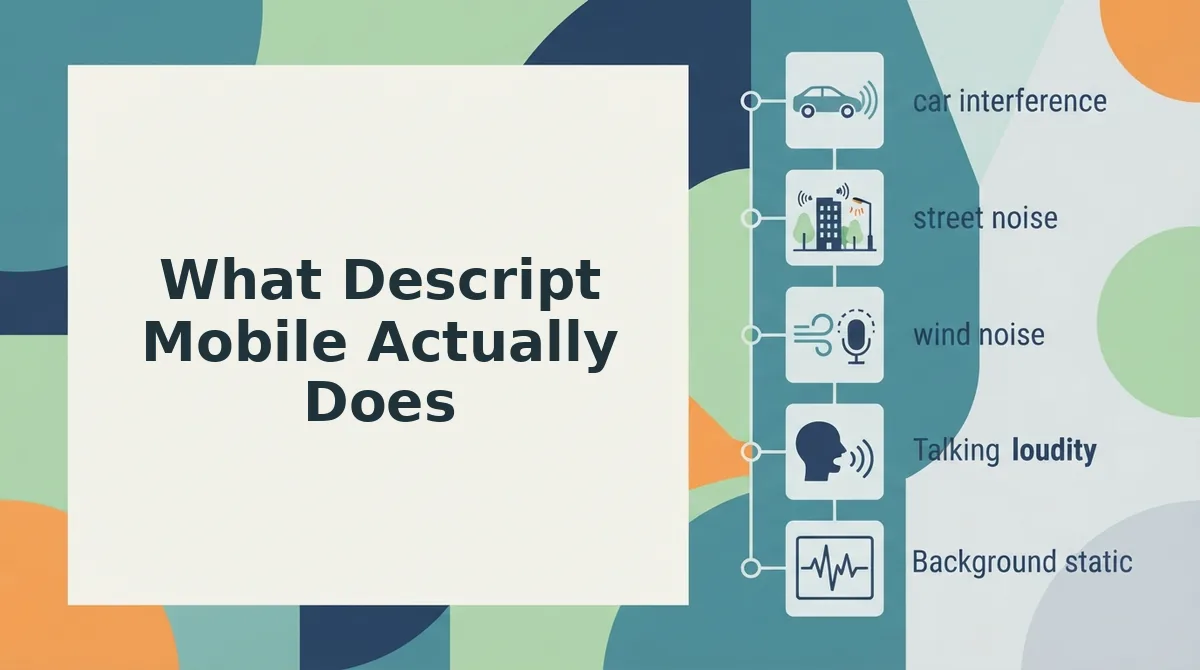
Descript is a transcription-based editing tool: it converts speech to text on a timeline so you cut audio by deleting words rather than scrubbing a waveform. The mobile app is one end of that system, not a shrunken copy of the desktop.
Think of the phone app as a mail slot and your account as the mailroom. You drop the recording in; the sorting, cutting and rearranging happen somewhere else, later, on a bigger surface.
At the simplest level, you open the app, speak, and stop â same as any voice memo. The intermediate layer is the account: the clip uploads and attaches to your workspace instead of sitting in a device folder, which is the structural reason the recording doesn't stay local. The advanced layer is what that enables â a transcript you can edit like a document, delete a whole false start by deleting a sentence, and export only when the audio is actually finished.
A concrete run-through: you record a 60-second update on your phone in a noisy room, the file lands in the account, and hours later on a laptop you remove a rambling aside by cutting one line of transcript and export the cleaned audio. Exact mobile behavior, including which cleanup features run on-device, shifts between releases and belongs in a documentation check rather than an assumption.
The browser path skips all of that architecture, which changes the trade-offs considerably.
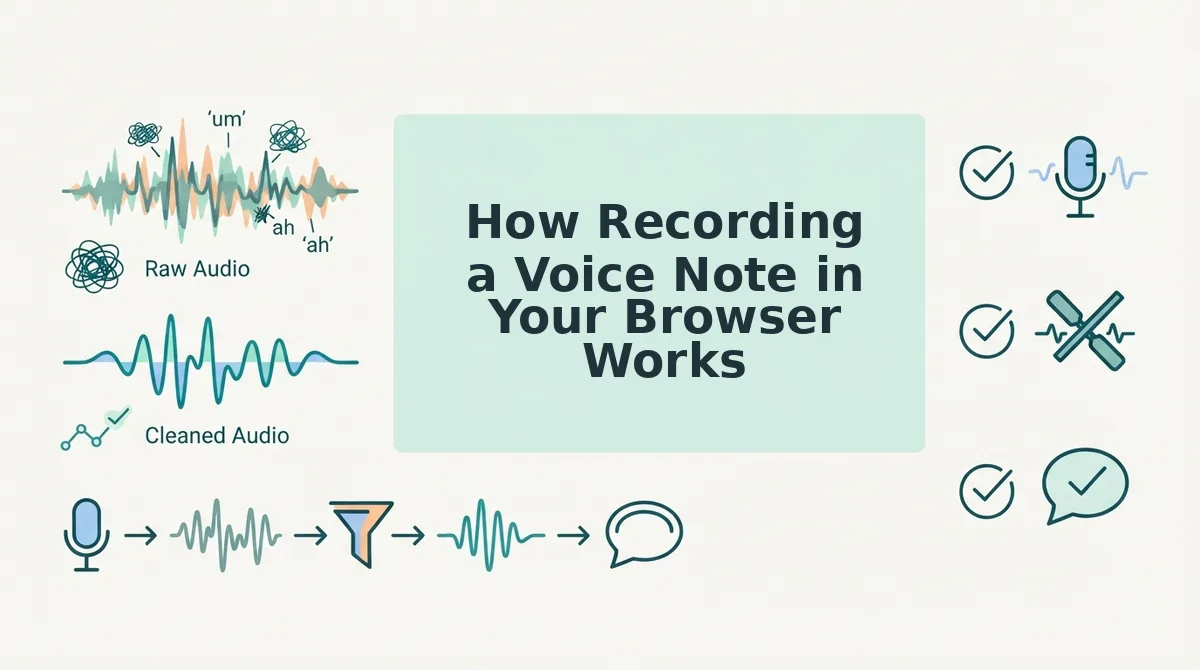
How Recording a Voice Note in Your Browser Works
Recording a voice note in a browser takes about two minutes and no install: open a recorder page, allow microphone access, speak, then download the file. The browser asks the operating system for the microphone and writes the captured audio as a file on your own device, so nothing is uploaded until you decide to send it.
Before you start: you need a browser with microphone permission enabled (Chrome, Safari, Firefox or Edge), a working microphone â the built-in one is fine â and roughly two minutes.
- Open a browser recorder. Type the recorder's address into your browser bar and load the page. You should see a record button within one to three seconds and no installer prompt.
- Click Record, then Allow. The browser shows a one-time permission prompt naming your microphone; select Allow. You should see the input level meter move when you speak.
- Move to a quiet room and run a mic check (30 seconds). Say "testing, one, two" and watch the meter. A reading that peaks mid-range is your target; a meter pinned at the top means step back from the mic.
- Speak your opening sentence twice. Record the first line, pause, then say it again â the second pass is usually the keeper and the first gives you a clean edit point. You should finish with two takes you can trim between.
- Stop, preview, then download and name the file (about 30 seconds). Click Stop, play it back once, then choose Download and name the file by recipient and date. You should see it land in your Downloads folder.
Two browser features do the work. getUserMedia is the function that asks your operating system for microphone access â it is why the Allow prompt appears and why nothing records if you decline. MediaRecorder takes the audio stream getUserMedia hands it and encodes that stream into a file, which is why a browser recording can be downloaded, attached to an email or dropped into a message thread instead of living inside an app.
| Route | Install required | Account required | Where the file lands |
|---|---|---|---|
| Browser voice recorder | No | No, on most recorders | Your device, as a downloaded file, until you upload it |
| Descript mobile app | Yes, from the app store | Yes, to open a project and sync | Inside the app project, synced to your account, exported when you choose |
| Phone's built-in voice memo app | No, preinstalled | No | Local device storage; you export or share it manually |
That three-row order is the structural answer to "where does the audio actually go": local file first, upload second, account storage only if the tool requires one. For a client or investor message, knowing which of those three you are in covers most of the privacy question. Mic technique covers the rest â see voice message best practices.
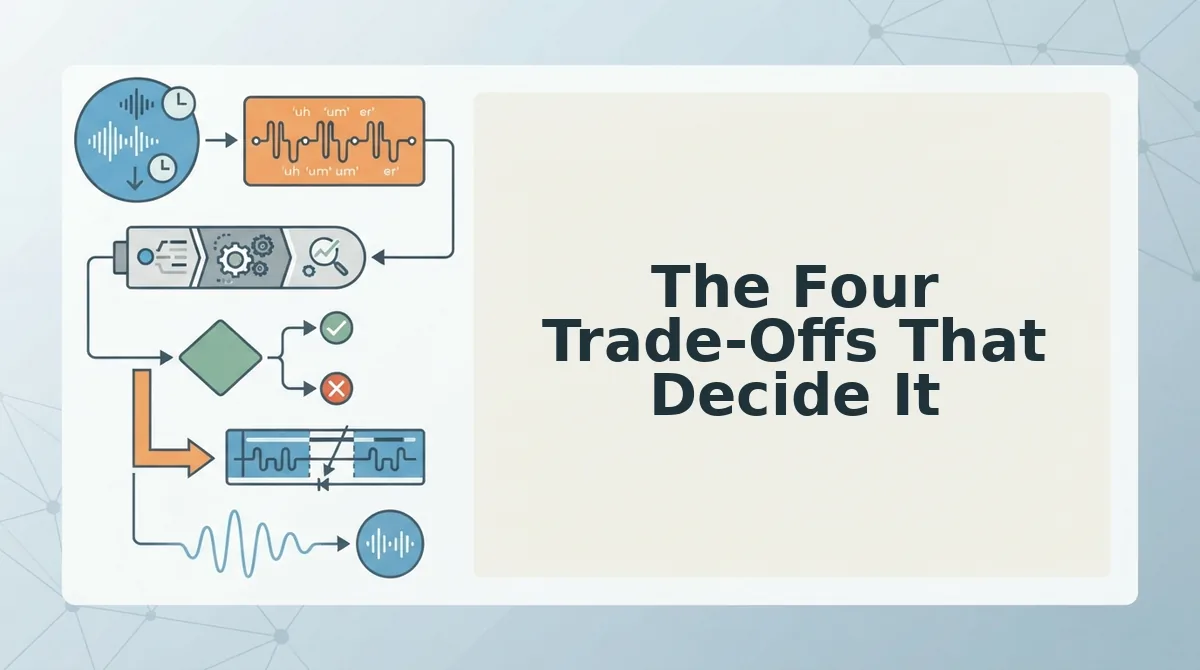
The Four Trade-Offs That Decide It
The choice comes down to four structural differences â install friction, interruption recovery, cleanup quality and delivery format â and only the first two are hard costs you pay every time. Cleanup and delivery are variable, which is why most comparisons that benchmark speed miss the decision entirely.
- Install-and-permission friction: count the steps, not the seconds. A browser route from intent to sent message runs: open tab (1), allow microphone (2), record (3), stop (4), download (5), attach to the thread (6) â six steps, zero installs, no password. A mobile editing app adds finding the store listing, downloading, installing, opening, creating or signing into an account, and granting microphone permission on first record before the take even starts: nine to eleven steps, one install, one account. This is arithmetic on a workflow, not a speed test, so use it to decide whether your message volume justifies the setup.
- Interruption recovery: which route loses the take. Short messages get interrupted constantly, and the two routes fail differently.
Read the third column as a warning and the first as an instruction: for anything past two minutes, keep the browser tab visible and record in a room where calls are unlikely.What happens mid-recording Browser recorder Mobile app editor Screen locks Tab is suspended and capture typically ends Native audio session usually continues Incoming call Call takes the audio route; the segment is unusable OS hands over the mic; check for a saved take on return Tab backgrounded Audio can drop once the tab is hidden Backgrounding is the native case, rarely fatal Tab closed Take is gone â nothing is written until download Project saves as you go Dead zone or lost connection Local capture continues; only the upload fails Depends on whether the app records locally first - Cleanup quality: filler words, false starts, room noise, spoken grammar. Neither capture route cleans anything on its own. A raw browser file keeps every "um," every restart and every room hum, and a mobile editor cleans only the parts you manually cut on a timeline. Judge the trade-off on the four things that actually degrade a voice message and decide whether you want to fix them by hand or in one pass â remove filler words from a voice note covers the automated route.
- Delivery: file format, thread compatibility, cross-border handoff. Browser recordings arrive as a downloaded file you attach yourself, which gives you control over format and naming but adds a manual share step. App projects stay inside the app until you export, which suits a recurring workflow and slows a one-off. If the recipient reads a different language than you speak, the capture format matters less than what happens next â translate a voice message before it leaves your inbox.
Can you send a voice note without installing an app? Yes. A browser recorder uses the microphone permission the browser already manages, encodes the take into a standard audio file and saves it to your device, so the message leaves as an attachment rather than a link into someone else's product. The cost is that the file is unfinished audio: fillers, restarts and background noise travel with it unless something cleans them first. That is a format trade-off, not a quality verdict, and it is why the install question and the cleanup question should be answered separately.
Where Each Route Wins and Where VClar Stops Short
Pick the browser recorder for one-off messages; pick Descript on mobile when voice notes are a weekly, multi-minute production habit. That split â volume, not speed â is the answer.
- Choose the browser recorder if you are sending a single message, working from a borrowed machine, or unwilling to install anything before a call. Capture starts inside the tab.
- Choose Descript on mobile if you ship several multi-minute voice messages every week and want transcription, text-based editing, and cross-device sync attached to the same project.
That threshold is a rule of thumb, not a measured benchmark. It moves with how many messages you send and how long they run, not with seconds saved per recording.
A concrete case. One investor update to send, no appetite for a new app. You open a browser recorder, speak once, download the file. Upload that file to VClar and the fillers, false starts, and spoken grammar are cleaned before it goes out â one take, no re-recording loop.
The limits deserve the same clarity. VClar is not a recorder. It does not capture audio, hold your message thread, or replace a timeline editor. It works on the file after capture: removing filler words, fixing spoken grammar, and translating across 11 languages while preserving your tone and cadence.
The finding this whole comparison keeps circling back to: capture is nearly solved, and delivery is where voice messages still break down. For the editing-depth and language-handling detail, see VClar vs Descript for voice messages, then run your next recording through the enhancer before you send it.
The app you record with decides how you capture; the sixty seconds between capture and send decide whether you sound decisive.
You can also edit and share a voice note.