
You finish the 90-second voice note to a client in Spanish, lift your thumb, and hear it back: three ums, a false start, and a fan humming under every word. Re-recording costs ten minutes. Sending it as-is costs credibility.
Descript for WhatsApp voice notes is a genuine workflow, but an indirect one â nothing inside WhatsApp hands your audio to a desktop editor on its own. You export the file, move it off the phone, then import it. Descript's own tutorials demonstrate transcribing an uploaded audio file, which is exactly what a WhatsApp voice note is not until that export happens.
Below you get the plain yes-but verdict, the phone-side extraction route that most tutorials skip entirely, and the one gap that decides whether this fits how you actually work: whether cleaned audio can go back out as a voice-note bubble.
A creator tutorial on YouTube already walks through this exact WhatsApp-to-target-language chain, which tells you people are attempting it â and hitting the handoffs. If translation is the real goal, VClar removes filler words and spoken grammar errors and carries the message into 11 languages while keeping the speaker's own cadence.
What Does Descript Actually Do With a WhatsApp Voice Note?
Descript transcribes and edits a WhatsApp voice note once that note exists as a file on your computer. It never reads from the chat itself, so the export is the whole ballgame.
Short answer: Descript will transcribe and clean a WhatsApp voice note after you export it as a file. In order: (1) record the note in WhatsApp, (2) export the .opus file to a computer, (3) upload it to Descript, (4) transcribe it, (5) clean the text or audio, (6) download the result.
A voice note is a push-to-talk audio message recorded inside WhatsApp and stored as an Ogg Opus file. That matters because what leaves your phone is .opus, not the .mp3 most editors advertise as their default import format.
Descript itself is a transcription and editing studio. Text-based editing, speaker labels, Studio Sound noise reduction, filler-word removal and dubbing all sit on top of uploaded media, which is why the file matters more than the app it came from.
Two outputs get confused constantly. A transcript is the text of what was said. Enhanced audio is a new sound file with the noise and filler trimmed out. Descript gives you both, and they are separate downloads.
Think of it like a photo sitting inside a chat app: the image is fine, but you cannot retouch it until you save it somewhere an editor can open.
The prerequisites, plainly. You need a desktop browser or the Descript desktop app, a plan that includes transcription, and the audio file already out of WhatsApp. The phone alone is not enough at any step.
Can Descript transcribe a WhatsApp voice note without exporting it? No. Descript has no connection to WhatsApp, no chat import, and no mobile shortcut that pulls a voice note from the app. The only path is a manual file export, and on iPhone that means exporting the entire chat with media rather than a single note. Budget five handoffs before a transcript ever appears: locate, export, transfer, import, transcribe.
How Do You Get a WhatsApp Voice Note Into Descript Step by Step?
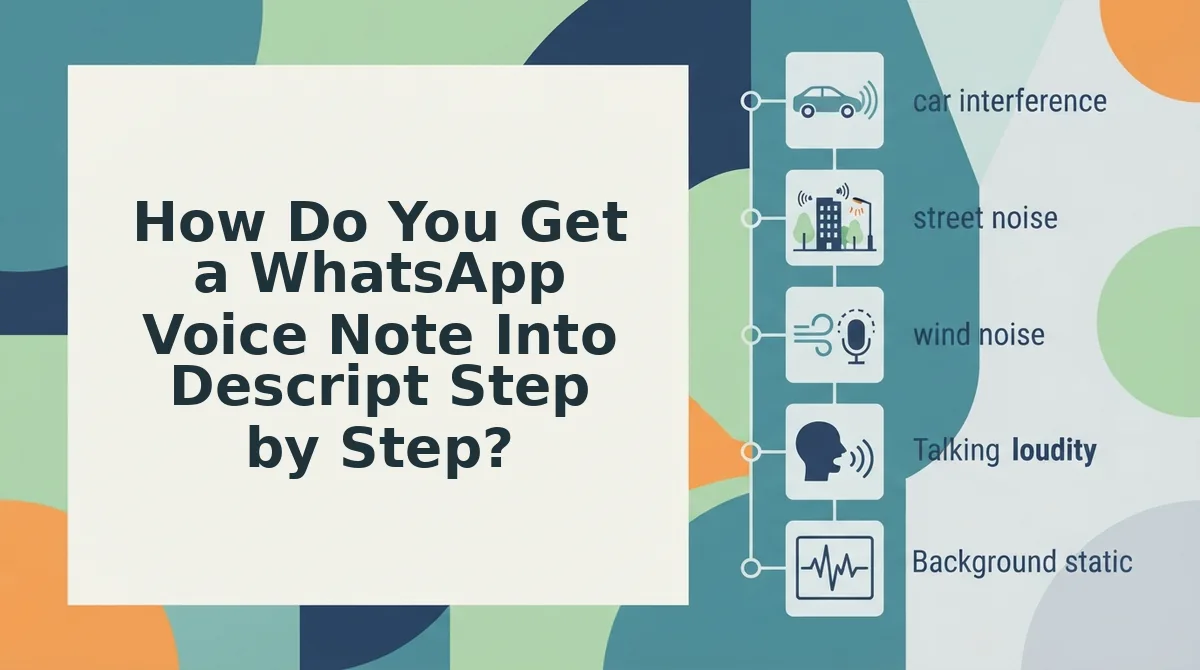
You extract the .opus file from the phone, move it to a computer, then upload it. The steps below assume the 90-second Spanish client note â the same chain works for any voice memo.
Before you start: a phone with the voice note still in the chat, a file manager (Android) or the Files app (iPhone), a cloud drive or file-transfer tool, and a Descript account on desktop.
- Open the WhatsApp chat and hold the microphone to record, or find the note you already sent. Outcome: the note plays back inside the chat, about 20 seconds of work.
- Open your file manager on Android and navigate to WhatsApp/Media/WhatsApp Voice Notes/. Outcome: a dated folder of .opus files; match the timestamp to your note.
- Tap the chat name on iPhone, then Export Chat, then Include Media, then save to Files. Outcome: a .zip containing the audio attachments, since individual notes are not exposed in Files.
- Upload the file to a cloud drive or send it to yourself, then download it on the computer. Outcome: the .opus sits in your Downloads folder â Descript ingests a file, never a chat thread.
- Create a new project in Descript's desktop app or browser, then drag the file into the media panel and choose Upload. Outcome: the audio appears as a clip you can play back.
- Select the clip, set the language to Spanish, and click Transcribe. Outcome: a text transcript with speaker labels, typically 2â4 minutes for 90 seconds of audio.
- Read the transcript and delete filler words directly from the text. Outcome: the audio timeline shortens as the words disappear.
- Choose Publish, then Audio, then download as MP3 or WAV. Outcome: a cleaned file on your desktop, ready to send back.
| Step | Where it happens |
|---|---|
| Record the note | WhatsApp, phone |
| Locate the .opus | Android file manager or iPhone Export Chat |
| Transfer the file | Cloud drive or direct share |
| Import and transcribe | Descript, desktop |
| Clean and export | Descript, desktop |
| Re-send | WhatsApp, phone |
Notice what you edited: the file, not the bubble. The recipient gets an attachment they must tap and play, not the native voice note they expected. Once the cleaned file is back on your phone, the real test begins â does the export actually sound like the note you meant to send?
How Do You Check the Result Actually Worked?
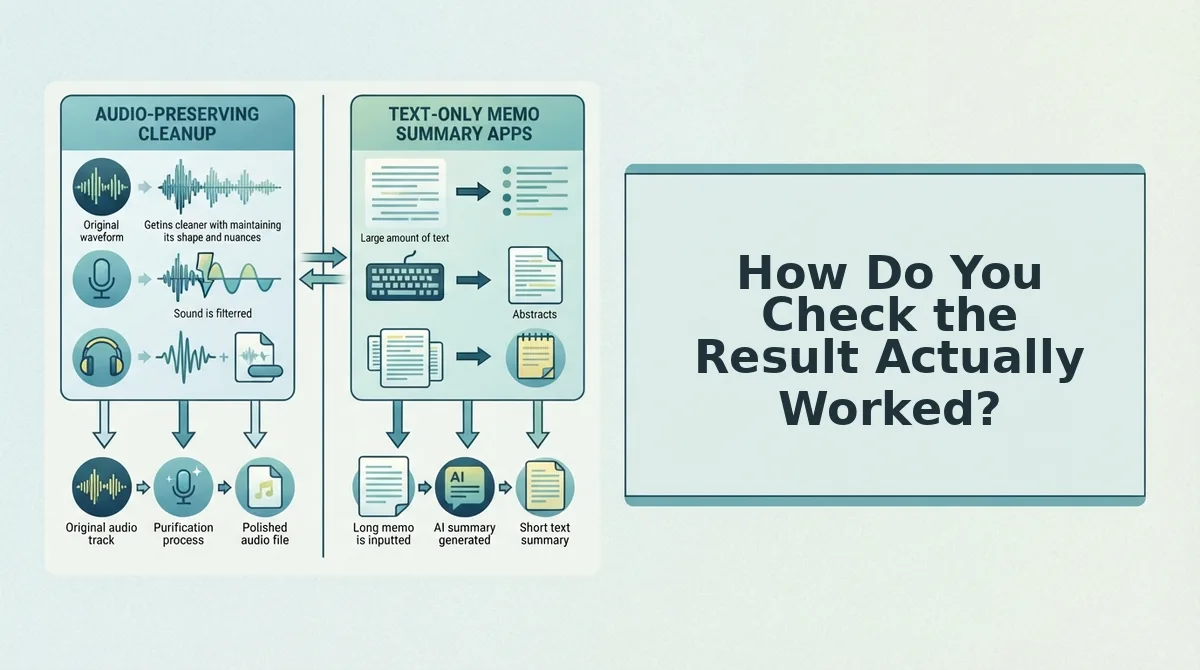
A verification pass is a short read-then-listen check that compares the cleaned audio against your original recording before anything gets sent. Descript makes the first half easy and the second half easy to skip â so build the habit in three stages.
Simple: read the transcript against the audio. Scan for dropped words, wrong speaker labels, and misheard names before you trust any edit. "Maya" turning into "Mia" survives a grammar cleanup and sinks the message.
Intermediate: listen on phone speakers. A laptop with headphones hides artifacts; a phone's small driver exposes them first. Studio Sound â Descript's room-noise and mic cleanup â is where those artifacts tend to surface.
Advanced: run the bubble test. Send the export to yourself in WhatsApp and look at what arrives. A re-sent MP3 lands as a file card the recipient must tap, download and play â not a native voice note with waveform scrubbing. Think of it like emailing a photo instead of posting it in the chat: same image, one extra tap, a different conversation.
What happens when you send a Descript export back to WhatsApp? The audio arrives as a file attachment, not a voice note bubble. Your recipient sees a document-style card with a filename, taps it, waits for the download, and plays it in a separate player. There is no waveform to scrub and no in-chat pause button. The audio itself may be clean; the delivery format is the part that changed, and that change is what the recipient notices.
Worked example: the cleaned Spanish export gets sent back and lands as a file card in the chat, not a playable voice note.
If the only edit you need is filler removal, a filler words remover that works without a timeline keeps the message where it was recorded. That single change removes the export step, and with it the bubble problem.
Is There a Shorter Route for a Single Short Message?
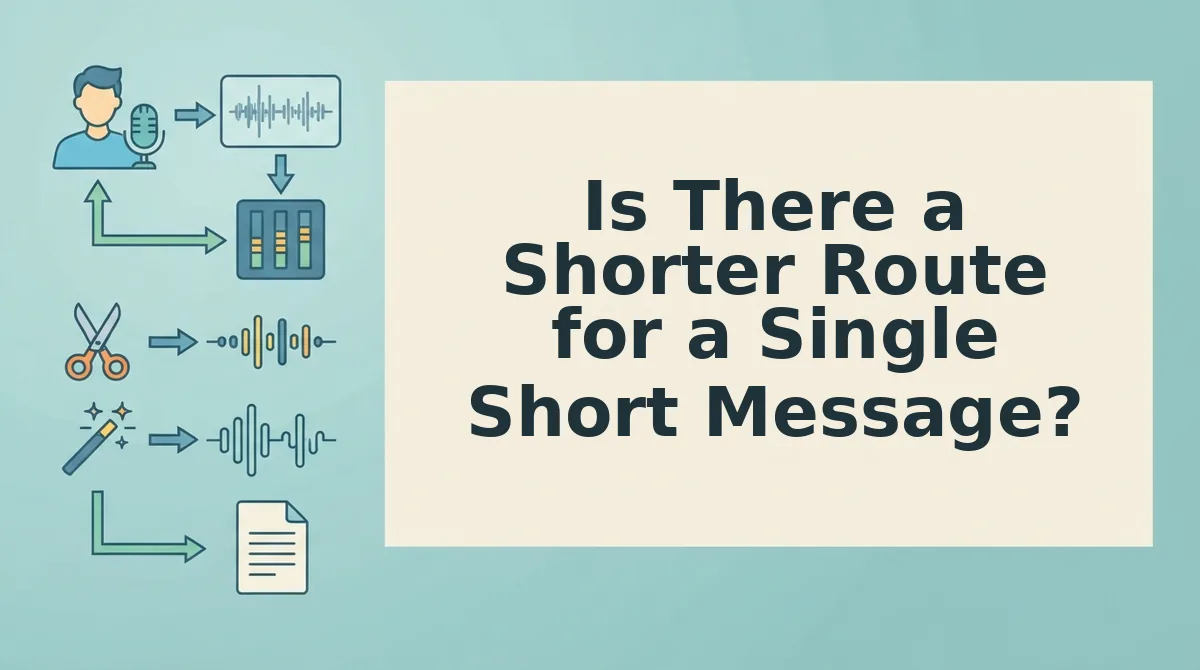
Yes. For a 45-second reply, cleaning the audio inside the chat skips the desktop round trip entirely â and the file-handoff cost disappears with it.
| Route | Where the work happens | What you send back | Best for |
|---|---|---|---|
| Descript | Desktop editor: import, transcribe, edit the text, export | An audio file (MP3/WAV) | Long, multi-speaker or video-linked audio |
| In-message cleaning and translation | Inside the message itself, no timeline | A voice note that stays a voice note | A single short reply that must go back as audio |
| Manual re-record | WhatsApp's own record button | A native voice note | One-off notes with a single stumble |
Best for long-form editors: Descript's transcript-based editing is genuinely strong on hour-long recordings, and its language features are built around dubbing video projects â that's the right tool for that job, not a flaw.
Best for a single reply: in-message cleaning keeps the audio as a voice note, so the bubble problem never appears. Translation at message level suits a 45-second answer, and preserved tone, accent and rhythm mean a cleaner version of the same speaker rather than a synthetic replacement.
Worked example: the same Spanish note cleaned and translated in one pass, across the WhatsApp voice note translation workflow, ready to send straight back into the chat. Founders running async updates can compare voice notes for founders, or read VClar vs Descript side by side.
The Verdict on Descript for WhatsApp Voice Notes
The honest yes-but: Descript can clean and transcribe a WhatsApp voice note, at the cost of roughly five handoff steps before you reach a transcript â and it hands you back a file, not a voice note.
That export is the deciding factor. Transcription quality is rarely the problem; delivery format usually is. Test the chain once on a single message so the cost is concrete rather than theoretical.
If your actual job is one reply that has to return as audio, skip the chain: clean and translate a WhatsApp voice note in one pass and send it back where it started. One take, no timeline, no file card â that's the workflow built for the message you're already holding.
You can also edit and share a voice note.