
A dubbed voice message arrives in your chat with no text attached, and the first instinct is that something broke. It probably didn't. Whether do translated voice messages come with a transcript depends on which stage of the process the tool translates at â the source recording, the finished audio, or both. Text-first tools hand you words and no voice. Dubbing tools hand you voice and no words. Only tools built to export both give you the pair.
You already know what you wanted: to translate a voice note across 11 languages and keep a record of what was said. That's a reasonable expectation, and it's achievable â just not by flipping a settings toggle inside a chat app. This guide separates the three ways voice translation gets built, then walks through the steps that return a cleaned audio file and a matching transcript from a single upload.
One catch is worth flagging now: the transcript a tool hands back is often not word-for-word what you said. Which version you get â and why it matters the moment you file it â is where this gets interesting.
So do translated voice messages come with a transcript or only audio?
It depends on how the tool is built, not on its language list â some pipelines return text, some return dubbed audio, and a few return both from one upload.
A transcript is a text rendering of everything spoken in an audio file, aligned to the recording. Dubbing is the other artifact: a re-voiced or synthesized audio track in the target language, with no text file attached. Dual output means a single upload produces both â translated audio plus a transcript that matches it line for line.
Film distribution solved this years ago: subtitles keep the words, dubbing replaces the voice, and shipping both is a packaging decision.
| Tool type | What you get | What you lose |
|---|---|---|
| Transcript-first | Translated text only | Fast and searchable, but the listener hears a synthetic voice or nothing at all |
| Audio-first dubbing | Dubbed audio only | Natural to listen to, but nothing to quote, forward, or file |
| Dual output | Cleaned translated audio plus a matching text transcript | Nothing structural â you pick which one to send |
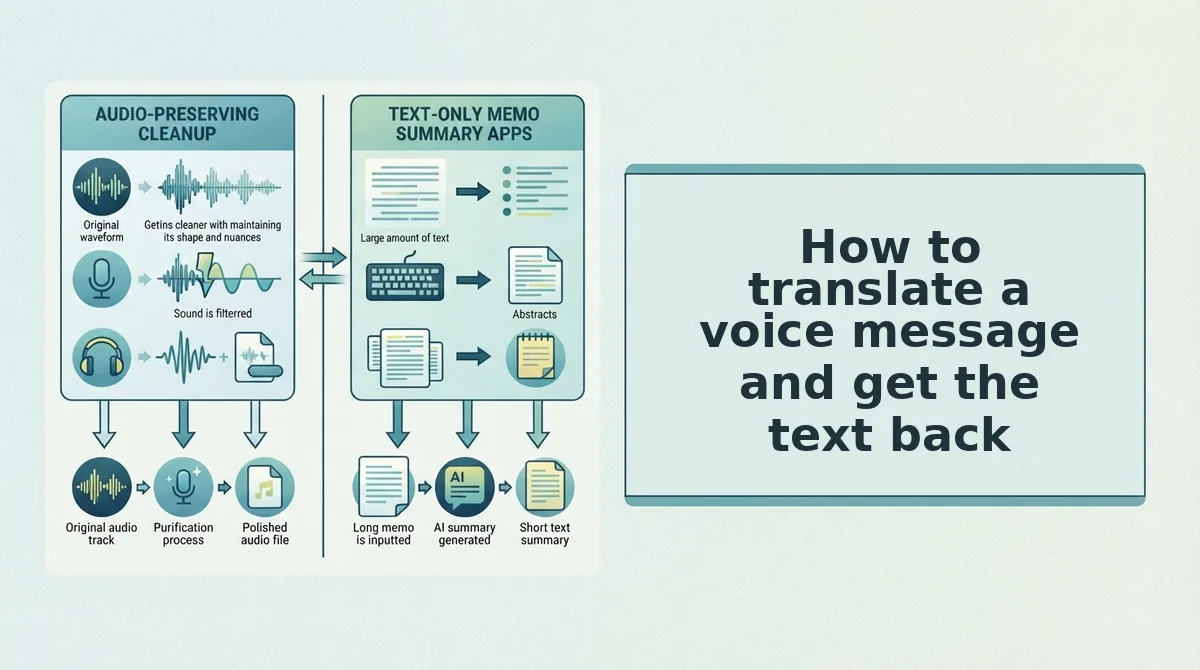
The Three-Pipeline Model explains the pattern. Transcript-first tools transcribe, translate, and stop â the text is the product. Audio-first dubbing tools transcribe, translate, re-render, then discard the intermediate text. Dual-output tools keep every stage and export both. The transcript isn't a settings toggle; it's an artifact of how far down the pipeline a tool chooses to travel.
Getting a translated audio file with no text attached is normal for audio-first dubbing tools, which translate the recording and discard the intermediate text once the new track is rendered. These tools treat the transcript as scaffolding rather than a deliverable, so nothing is exported and no setting changes that. If you need a written record, the fix is a different tool category, not a hidden menu. Dual-output translators keep the text stage intact and export it beside the audio, so one upload yields a file to listen to and a file to quote.
VClar's voice message translator with transcript returns cleaned audio and matching text from one pass, so nobody has to re-record to get the written version.
How to translate a voice message and get the text back
You need three things before step one: the original audio file or the in-app message, a known source language, and a tool that states its output format before you upload â audio only, text only, or both.
- Clean the recording first (about 60 seconds). Run the raw audio through a filler-removal pass. Fillers cut at the source stay cut; fillers left in get translated as noise, so the target-language listener hears hesitation that was never part of your point. Strip the fillers before they get translated. Success looks like a tighter clip with no audible gaps at the edit points.
- Repair the spoken grammar next (about 30 seconds). Fragments are the quiet killer â "shipment late, need new date, call me" reads fine in your own cadence and collapses after a language hop. Fix fragmented spoken grammar until every sentence carries a subject and a verb. You should see complete sentences in the transcript preview.
- Set both languages by name. Skip auto-detect on a 45â90 second clip: there isn't enough audio to be confident, and a wrong guess produces fluent nonsense. Open the language selector, choose source and target, then confirm the pair appears on screen.
- Request both deliverables. Open the export settings and tick transcript alongside audio. Defaults vary â plenty of tools export audio only and treat the text as scaffolding. You should see two items in the output panel, one playable and one copyable.
- Save the pair together. Put the audio and the transcript in one folder under a shared filename so they don't drift apart in a busy inbox. You should end with two files that match in name and length.
This is where most people get burned: they play the audio and never open the text. A B2B sales rep recording a 70-second follow-up for an enterprise buyer in another language runs it through the enhancer and gets cleaned translated audio plus a matching transcript â one file to send, one to paste into a CRM note. For that workflow end to end, see voice notes for B2B follow-ups.
Before you forward any of it, confirm the text is actually usable.
How to check the transcript is usable before you rely on it
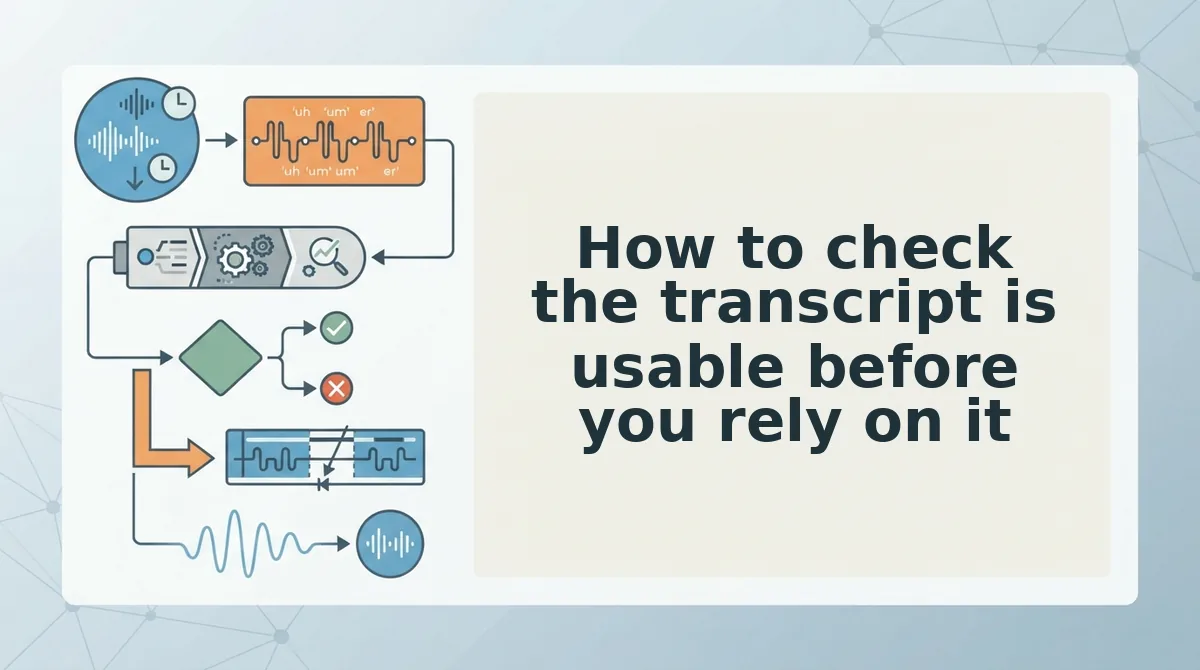
A usable transcript passes five checks: a text file or on-screen text exists, it is in the target language, timestamps are present where you need to cite a moment, fillers are cleaned and punctuation restored, and names, numbers and product terms survived intact. Run all five on one test message before a high-stakes send.
- Text actually exists. Confirm you have an exportable file or on-screen text, not just a downloaded audio clip.
- Target language. Read the first line â a translated audio file sometimes arrives paired with a source-language transcript.
- Timestamps. Only essential if you must point a colleague to one specific moment.
- Cleaned, not verbatim. Fillers removed and punctuation restored, or you have a ramble in text form.
- Names and numbers. Proper nouns and figures are the first things translation breaks â check every one.
The three pipelines are not equally good at this, but each has a real strength.
| Pipeline | What you get back | Best for |
|---|---|---|
| Dual-output (audio + text in one pass) | Cleaned audio plus a target-language transcript | Founders and sales reps who need a record to paste into email or CRM |
| Audio-first dubbing | Dubbed audio; text only if the tool exposes an export | Recipients forwarding a message who only need to hear it in their language |
| Transcript-first | Text and translation first, audio second | Readers who need a citable record and can work without the voice |
A founder sending an investor update by voice can run all five checks in about two minutes. Record one throwaway sentence containing a real name, a funding figure, and your product name. If the transcript returns all three correctly, in the target language, with fillers gone, the pipeline is reliable enough for the actual update â and for the CRM note you will paste it into afterwards.
A transcript that reads like a ramble is no better than the audio it came from. Clean the source before you judge the output.
Frequently asked questions about translated voice message transcripts
Should a translated transcript be verbatim or cleaned?
Cleaned is the useful default for work messages: fillers and false starts removed, punctuation restored. Verbatim output preserves every hesitation, which suits legal, medical, or compliance records where exact wording is the point. Most business readers want the cleaned version.
How do I keep the transcript as a record?
Save the text file alongside the audio. The transcript is the artifact you paste into an email, a CRM note, or a support ticket â searchable, quotable, attachable. A voice memo is none of those. Keep both in one folder.
When is a transcript the wrong deliverable?
When the meaning lives in tone. Emotional, humorous, or sarcastic voice notes flatten in text, and a clean transcript can read colder than the speaker intended. Lead with the audio and treat the text as backup.
How do I get a voice message into English text when the sender spoke another language?
Use a translator that returns text, not dubbed audio alone â a pipeline that translates the speech and hands back both. VClar translates cleaned voice messages across 11 languages and preserves the original speaker's voice in the audio.
Send once and keep both outputs
The transcript is not a bonus feature bolted onto translation â it is a product of the order your tool runs its steps. Pick a dual-output setup before you record, and the text arrives with the audio instead of waiting on a second pass you never get around to.
The habit worth keeping: never accept one file when a send matters. Open both outputs, run the five checks, then send.
Start with one real message. Translate a voice message and confirm the audio and the text both come back â that single pass becomes your template for every cross-border call after it.
Record once, send once, and let the second artifact ride along.
You can also translate a voice message.