
Your 45-second investor update is fine except for the three false starts, the two "basically"s, and the mouth click at 0:12 â and the laptop holding the file will not install anything.
You are not missing a capability. You are working inside a device configuration your IT team owns, and that changes which fix is actually fast. This guide shows you how to clean a voice note on a locked-down work laptop entirely inside a browser tab: no installer, no admin password, no re-record.
You will get four moves â drop the audio in, strip the fillers and spoken grammar, review the transcript line by line, then send the cleaned file â plus the handoff to use when your microphone itself is disabled by policy.
One surprise first: the IT ticket most people open is usually the slowest route to a fix, because the limitation is almost never the software. The next section splits "locked down" into its five separate meanings so you can spot which one is in your way. Clean a voice note in your browser and follow along.
What Does a Locked-Down Laptop Actually Block?
"Locked down" is not one condition â it is five separate restrictions, and each one breaks a different part of the workflow. Identify yours before you open an IT ticket.
A device baseline is the fixed set of permissions and approved software your IT team pushes to every managed machine. A browser session is simply the tab you have open: work inside it inherits permissions you already hold instead of requesting new ones. Think of a hotel room with a capped thermostat â you can open a window, but you cannot rewire the heating.
- No admin elevation. You cannot approve the UAC prompt, so no MSI or EXE runs. Workaround: do the job in a tab.
- App store or package manager blocked. Self-service portals show only an approved catalogue. Workaround: stop hunting that catalogue.
- Browser extensions unapproved. Add-ons are inventoried too. Workaround: use a website, not an extension.
- Microphone permission controlled at OS level. The toggle is greyed out for every app. Workaround: record on a personal phone, process on the laptop.
- Upload or DLP filtering. Traffic to unapproved domains is inspected or blocked. Workaround: none from your side â get the domain approved first.
Be clear-eyed about that last item: a browser tool does not defeat upload filtering, and any product claiming it does is not one to hand a work file to.
Can you install a filler-word remover on a locked-down work laptop? Usually not â and you do not need to. Removing filler words from audio, correcting spoken grammar, and reducing room noise are file-in, file-out jobs. You upload the memo, the cleaned audio and a transcript come back in the same tab,
How Do I Clean a Voice Note Without Installing Anything?
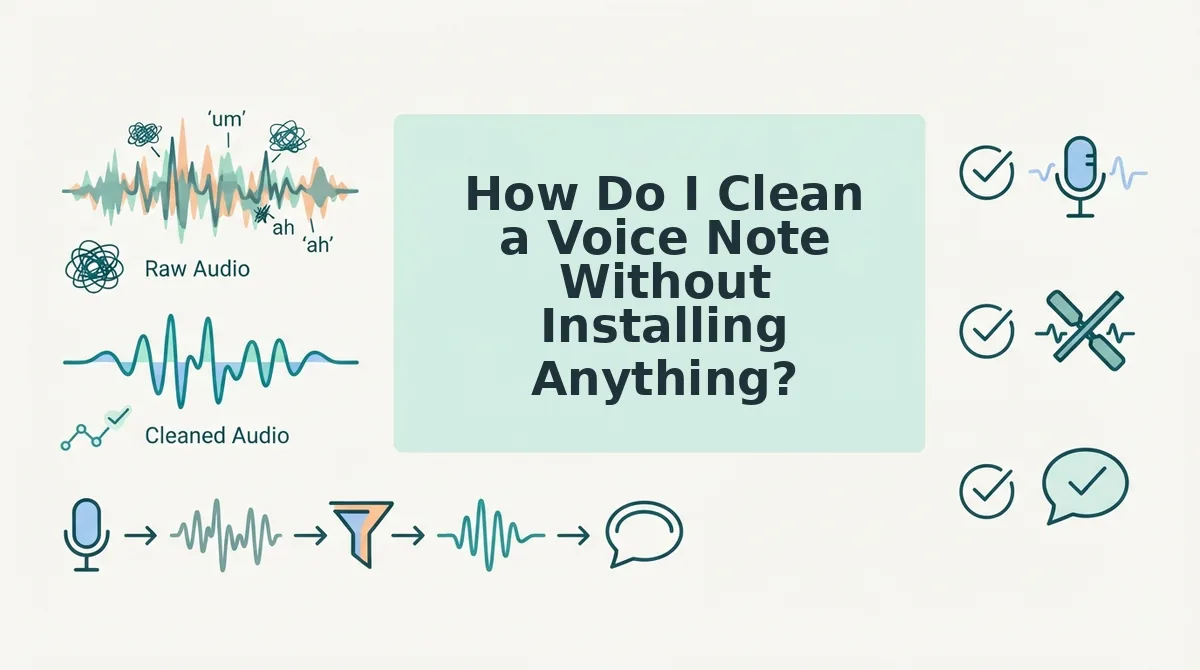
You clean a voice note on a locked-down laptop by keeping the whole job inside one browser tab: upload or record, let the tool strip fillers and background noise, review the transcript, then send the cleaned file. Nothing is installed, so nothing needs admin rights.
A browser-based audio editor is a web app that processes audio on a remote server, so the only thing your laptop runs is the tab. Before you start, have your audio file ready â or a working microphone â plus a browser version your IT team already approves.
- Open the editor. Go to clean a voice note in your browser in a normal window, not private, so the session survives an IT-forced restart. You should see the upload panel and a record button.
- Upload or record. Drag your audio onto the drop zone, or click record and speak. Success looks like a waveform filling the timeline with your file name above it.
- Turn on the cleanup controls. Enable filler word removal, spoken-grammar correction, and background noise reduction, then start the run. Ums, ahs, "like," and false starts drop out and the timeline shortens. Expect a cleaned waveform shorter than the original.
- Review the transcript. Read the text beside the audio, restore any cut you disagree with, then play the cleaned file top to bottom once.
- Send the reviewed audio. Download the file or copy it into your message. A clean, single-take result should land in your downloads folder â no re-recording loop.
The whole job stays in one tab: no timeline editing, no export settings, no sync client.
What if your mic is blocked by policy?
When device policy disables the laptop microphone, the fix is a handoff, not a workaround. Record the note on your personal phone, move the file to the work laptop, then process it in the browser tab there.
This two-device relay keeps capture on the device allowed to capture, and keeps the review gate and the send on the device your policy actually covers. The laptop only ever opens a tab and handles a file â so the cleaned audio still leaves from the machine your IT team manages.
Pro tip: run the upload from the laptop, not the phone. The review gate and the send both belong on the covered device, and checking a transcript is faster on a full keyboard and screen.
For example: a rep drafts a client update on a phone during a commute, moves the memo to the work laptop, and uploads it at the desk. The tab strips the fillers, the rep corrects one garbled sentence in the transcript, and the cleaned file goes out before the next call â no ticket, no installer.
One check matters more than any step above: whether the cleanup actually held up.
How Do I Check the Cleanup Worked Before I Send It?
Read the cleaned transcript against your memory of what you said, line by line, then listen once at normal speed. The transcript diff is the review method: it shows exactly what changed before the audio goes anywhere.
This is the quiet advantage of the browser route. An auditable diff you can screenshot is a stronger compliance position than an installed tool whose processing you cannot inspect.
- Meaning intact. Confirm the cleaned version says what you actually meant to say, not just something grammatical. Rewrite any sentence where the cleanup changed your position, your commitment, or your recommendation.
- No clipped word boundaries. Filler removal cuts audio from the timeline, and a tight cut can shave the start or end of a neighbouring word so it sounds swallowed. Read the transcript for missing syllables, then listen back for gaps where a filler used to sit.
- Grammar fixes that keep your phrasing. Check that corrections tightened the sentence without flattening your cadence or swapping your word choices for someone else's. If you need to undo a correction, run the note through fix spoken grammar again at a lighter setting rather than accepting awkward phrasing.
- Noise and breath artifacts. Listen for clicks, breath spikes, or a room tone that dips oddly where the engine worked. These are the edits most likely to pass a transcript read and fail a headphone listen.
- Names, numbers, and dates. Verify every proper noun and figure character by character against your source notes. Cleanup engines normalise spoken numbers into digits, and this is where a mistyped figure or a misheard client name survives review.
- Tone still recognizable as you. Ask whether a colleague would know it was your message without seeing your name. If the delivery sounds flat or over-formal, the note no longer does the job a voice message is for.
The 90-word check for recurring senders
If you send cleaned notes weekly, the six checks compress into one habit: open the transcript and the original side by side, scan for the three things cleanup most often breaks â a name, a number, and a word boundary at a cut â then play the audio once. Founders sending investor updates, who do this on a schedule, tend to build this into a fixed pre-send pass. The voice notes for founders walkthrough shows what that cadence looks like in practice.
One sequencing note: do the transcript read first, not the listen. Listening first anchors you to how the message sounds and makes a missing clause much harder to spot, because the audio has already smoothed over the gap. Read, then listen.
If filler removal left the note still carrying "you know" or "basically," run it through the filler words remover once more before you send rather than editing around them.
Common Questions About Cleaning Voice Notes on Locked-Down Laptops
The four questions below come up after the workflow itself is clear â each one is about a constraint the steps do not solve on their own. Short answers, no workarounds where none exist.
How do I remove filler words from audio without installing any software?
Process the file in a browser tab on the machine you already have. Filler removal is an audio-timeline edit, so it does not require a desktop application or admin rights to run â the work happens on the uploaded file, not on your local system.
Does the cleaned voice note still sound like me?
It should, and that is the test worth applying. Cleanup removes hesitation and corrects spoken grammar while leaving your accent, pacing, and cadence intact, so the result reads as a more decisive version of the same speaker rather than a synthetic voice.
What if corporate upload filtering blocks the site I need?
Then the browser route cannot help you, and no clever workaround exists. If the network blocks the destination, the file never arrives. Ask IT for an approved destination or an exception before you rely on this workflow for anything time-sensitive.
Does this work on a voice note someone else sent me?
Yes. A memo you received goes through the same steps as one you recorded, minus the recording stage: upload the file, clean it, review the transcript diff, then send or transcribe it. You do not need to have been the speaker.
Send the Clean Version, Not the Re-Record
You now know which constraint you are actually under â admin rights, app installs, extensions, mic policy, or upload filtering â so you also know whether a browser tab is enough or whether IT needs a request from you.
The four steps hold regardless: upload or relay the recording, clean the audio, read the transcript diff before you listen, then send. That loop replaces the re-record spiral, which is the real cost of a rough note â not the first take, but the fourth and fifth.
If your real job is recurring voice updates rather than one message, the founder update workflow is the better starting point, and if you have been putting off cleanup because timeline editing looks like a skill to learn, the comparison with Descript covers why there is no timeline to master here.
Otherwise, take the rough note already sitting in your recordings folder â the one you have been meaning to redo â and put it through the four steps now. Then send it.
You can also remove fillers from a recording.