
Your thumb is already over the send button when it hits you: you have no idea what the cleaner removed. A founder records an investor update in a parked car, the road noise vanishes, the memo sounds studio-clean â but the deleted "basically" and the ask that landed softer than intended went unchecked.
Fair concern. One-click cleanup feels like a black box, and every top-ranked video on this query demos noise removal with no step for reviewing what was removed from the speech itself.
You can hear what changed after voice note cleanup without opening a DAW: know the three layers, run the four-pass review, apply one restore rule for the edits that matter. Founders who send memos instead of emails will recognize the stakes â voice notes for founders.
Set out the original memo, the cleaned version, the transcript, and a quiet minute with headphones. One pass catches what no demo shows: a removed word that was doing real work.
You hear what changed by comparing the cleaned audio and transcript against the original, layer by layer, before sending. The comparison view marks each removed filler and repaired phrase so you check a list instead of a feeling.
What Actually Changes When a Voice Note Is Cleaned?
Cleanup changes three separate layers of a recording: the noise floor under your voice, the fillers and false starts inside your sentences, and the grammar of those sentences. Most tools fix only the first, which is why a cleaned note can sound polished and still be hard to follow.
A voice note before and after is the same take heard twice against its transcript, not a different performance. Before: the room tone, the breath before the ask, the "um" that buys thinking time, the sentence that restarts halfway. After: those are gone, while your pitch, pace, and accent stay where they were. The side-by-side enhancement view is the screen that shows both takes and both transcripts at once with every edit marked, so you confirm changes by reading rather than by noticing. Filler removal strips the ums, ahs, "like," "you know," and repeated starts from the audio timeline.
Spoken grammar correction is the third layer: run-ons and missing subjects get tightened so the line reads the way you would have typed it.
- Noise floor â room hum, breath, mouth clicks.
- Fillers and false starts â ums, "basically," a sentence abandoned and restarted.
- Grammar repairs â tangled phrasing made readable without changing your point.
Free AI cleanup tools mostly target the noise bed rather than speech content; PiXimperfect's free-tools roundup and VEED STUDIO's one-click demo both stop there.
Flipping between two files is the habit dialogue-cleanup tutorials teach â Jason Yadlovski's DaVinci Resolve walkthrough solo-mutes tracks to isolate noise â and it isolates noise well. But your ear locks onto the background and skips word-level edits. Listen to content sequentially first, then confirm side-by-side.
VClar keeps your cadence, accent, and rhythm intact while it works both layers of speech, so the result still sounds like you; the filler words remover handles the middle layer.
How to Hear Every Edit With the 4-Pass Review
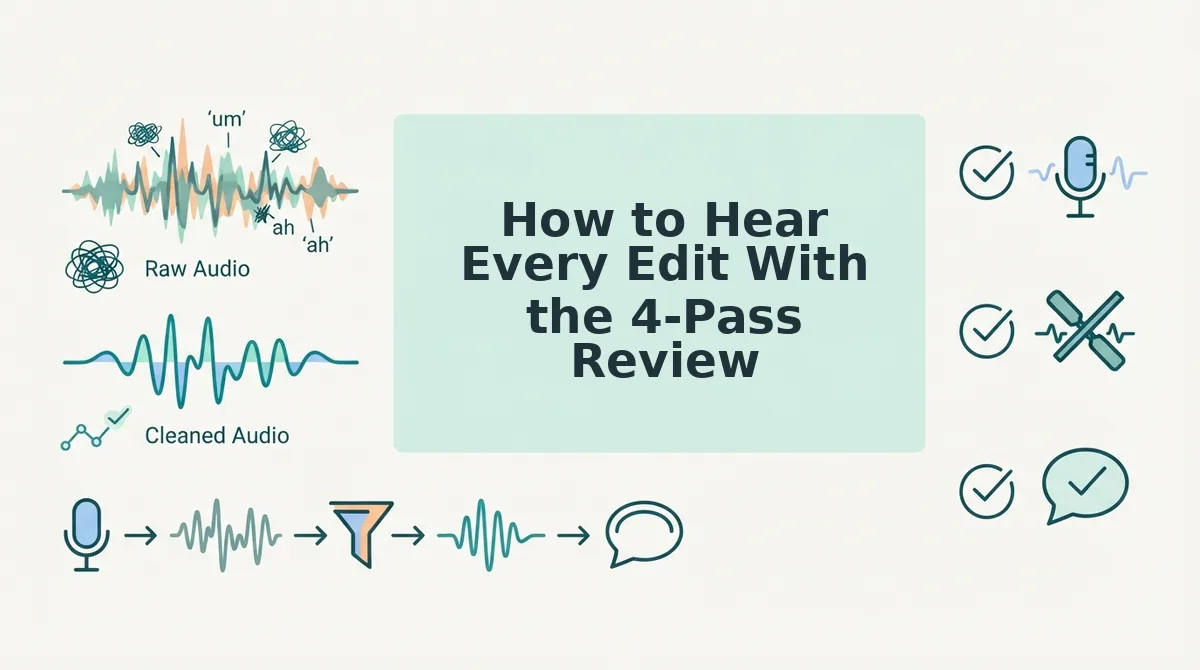
Run four passes â original with transcript, cleaned audio alone, side-by-side comparison, then a blind listen â and you will catch every word-level change before sending. All of it happens in the comparison view, with no timeline editing required.
Gather four things first: the original memo, the cleaned version, the transcript, and headphones in a quiet room. Laptop speakers hide exactly the breath and mouth-click edits you are trying to judge.
- Play the original with the transcript open. Jot a mark beside each hesitation and underline the one sentence carrying your main ask. Listen for the ums, the restarts, and the point the recipient must hear. You should end with a short handwritten list â budget roughly two minutes on a one-minute memo.
- Play the cleaned version as audio only, transcript closed. Hear it the way the recipient will, with nothing to read along to. Listen for whether the ask lands and whether any pause now feels abrupt. You should end with a handful of moments that feel clipped, and those are the ones Pass 3 has to explain.
- Open the side-by-side enhancement view and confirm each change against your marks. Work line by line: every removed filler, every repaired phrase, every deleted pause. Listen for words that vanished but mattered â a sales follow-up where "so, the reason I'm calling isâ" got stripped loses the hinge that swings into the ask, and you only see it here. If a repair reads wrong, run it through how to fix grammar in a voice message rather than re-recording.
- Do a blind final listen before sending. Collapse the comparison view and play the cleaned note start to finish with no marks on screen. Listen for anything that now sounds missing or rushed. You should reach the end without wanting to re-record, which is the signal to send.
Pro tip: use the transcript as a receipt. Count the removed fillers and the repaired fragments, then verify that count against what you heard in Pass 3 â you are checking a list, not a feeling, and a mismatch is your cue to look again.
That review takes a few minutes and replaces the re-record loop most people default to; VClar runs the cleanup and the marked comparison in one place, so the check and the fix sit side by side.
Knowing what changed is half the job â the other half is deciding which edits you actually wanted.
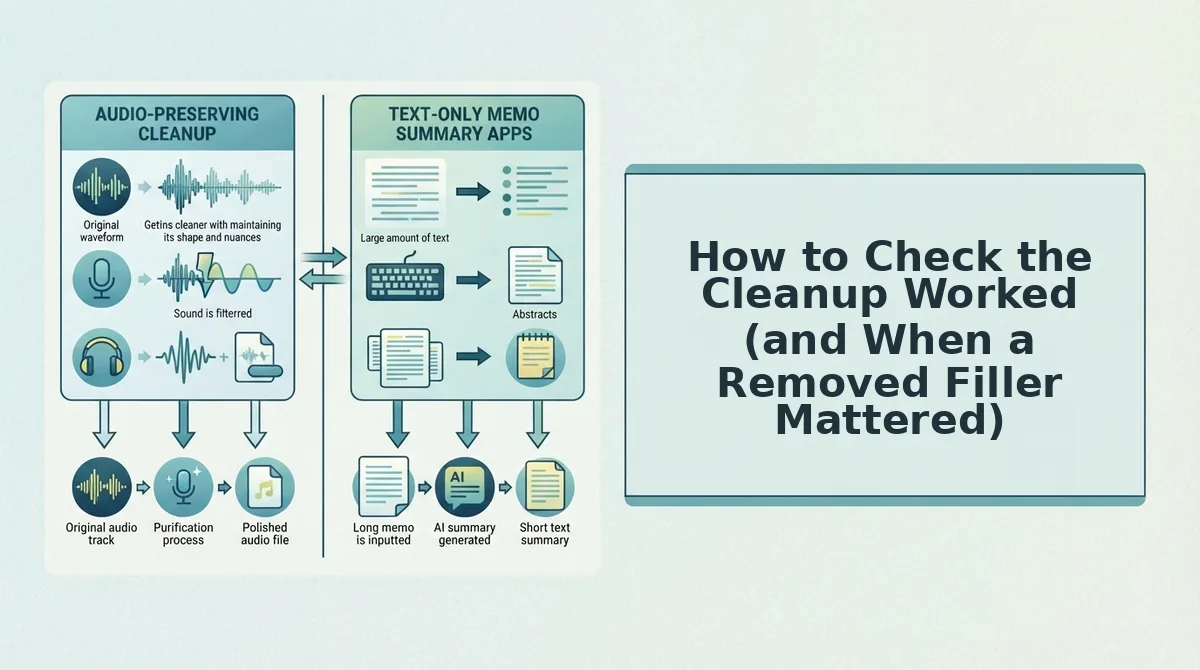
How to Check the Cleanup Worked (and When a Removed Filler Mattered)
The cleanup worked if four things hold: the meaning survives, the ask is still clear, the cadence still sounds like you, and the transcript receipt matches what you heard. If one check fails, restore the specific removed element rather than re-recording the whole message.
- Meaning: Every point from the original is still there.
- Ask: The request or next step is unmistakable.
- Cadence: The pacing sounds natural, not clipped.
- Transcript match: The cleaned transcript reads exactly like the audio you heard.
Most removals are correct. A few fillers, however, are load-bearing.
| Removed element | What it was doing | Verdict |
|---|---|---|
| "So" before a topic turn | Signals a new subject | Keep the cue |
| "Right" softening a hard ask | Lowers pressure on the listener | Consider keeping |
| Pause marking a list | Separates items | Keep |
| Repeated "um" | Nothing | Delete |
| False start | Abandoned sentence | Delete |
| "Basically" with no job | Padding | Delete |
This settles the founder's memo from the car. Each "basically" carried no meaning, so deleting it was correct.
- Best for investor updates: Keep the "so" cues that mark topic turns, and cut everything else.
- Best for sales asks: Consider keeping a softening "right" before the request.
- Best for client updates: Keep the pauses between list items so deliverables stay distinct.
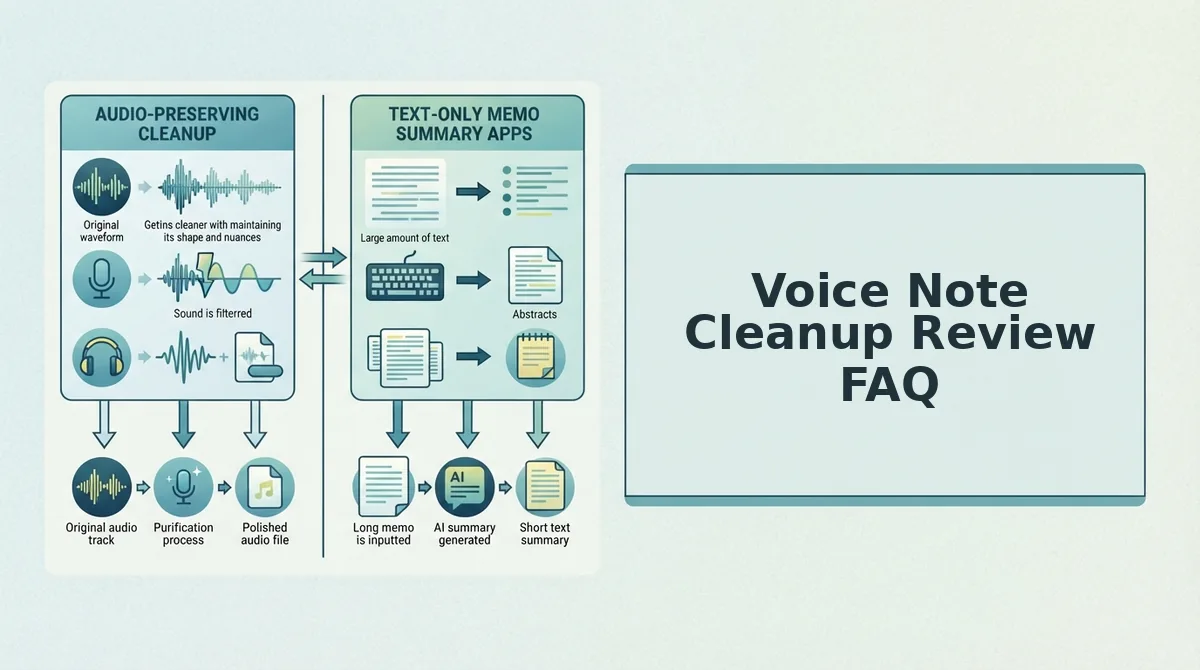
Voice Note Cleanup Review FAQ
These answers cover the review questions that the earlier sections do not address directly.
Can you do voice note cleanup without timeline editing?
Yes. You review the result in a side-by-side comparison view, not on a timeline. That replaces soloing and muting tracks in an audio editor, so you hear the original and the cleaned version back to back without touching a waveform.
How do I translate a voice note that trails off mid-thought?
Clean it first, then translate. Cleanup removes the drift, which gives you a transcript that anchors your meaning. For example, a cross-border update that wandered between points becomes one clear message before you translate voice notes across 11 languages and 110 translation directions.
Will cleanup change my accent or tone?
No. Cleanup tightens fillers, spoken grammar and background noise. Your natural tone, accent and rhythm stay the same, so the message still sounds like you.
How do I review a voice message before sending?
Run the four checks: meaning, ask, cadence and transcript match. If a removed word was doing real work, restore it. If it wasn't, send the message.
Send It in One Take
Hearing what changed takes four passes: original, cleaned solo, side-by-side diff and blind check. Make those passes a habit, and you no longer need to re-record.
The bigger gain is certainty. You know exactly what was removed before your investor, buyer or client hears it, and you know which "so" or pause you kept on purpose. Over time, side-by-side comparisons also show you your own patterns, and that helps you speak more clearly before any cleanup runs.
Your next step: Open your next memo in the side-by-side enhancement view at VClar and run the four passes before you send it.
Speak once, review in minutes, and send a message that still sounds like you.
You can also remove fillers from a recording.