
You have a 45-second update that is finished in your head, and it is sitting next to a project window that has to load first. That gap â between the note being ready and the file being sendable â is what people are actually asking about when they search for descript time to clean a short voice note, and it is the one number Descript never publishes.
Almost every result on this topic is a tutorial. Those show you which button strips filler words; none of them show what the run costs you in minutes. Descript's own documentation explains the clicks, and the marketing sells an all-in-one editor â a feature pitch, not a speed claim. The honest answer has to be assembled from the steps.
What follows is that assembly: what actually consumes the clock on a sub-minute file, the full eight-step inventory from import to export, and where a short note stops earning its setup. You will also see why the filler pass turns out to be the cheapest step in the chain â and the reason is not the one most people assume.
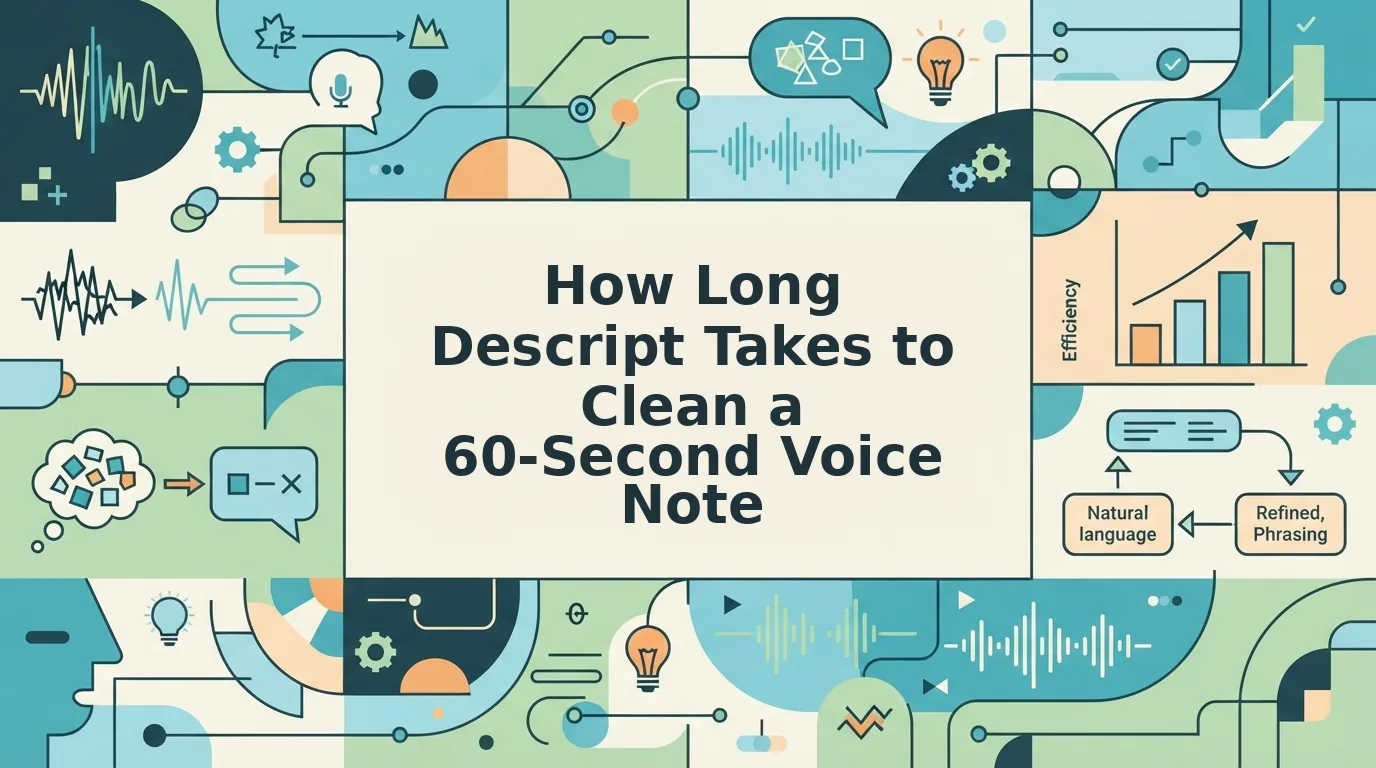
How long does Descript take to clean a 60-second voice note?
Descript publishes no duration benchmark for cleaning a voice note. Cleanup runs on the transcript, so the clock on a 60-second file is dominated by project setup, transcription, and export â the filler pass itself only takes as long as the AI needs to act on text that already exists.
Any specific minute count you see quoted elsewhere is unsourced. The only reliable method is to time the steps once on your own machine and keep the number.
What you end up with: a cleaned audio file, rendered and downloaded or shareable as a link. What you need before starting: the source recording, a signed-in Descript account, and a project to drop the file into. Nothing else is required, and nothing about the file being short removes any of those three.
Four terms do most of the work in that answer:
- Descript is a text-based audio and video editor where you cut recordings by editing the words of a transcript.
- Text-based editing means deleting text in the transcript and having the matching audio removed underneath it, so the waveform shortens as you type.
- Filler word removal is the pass that strips "um," "uh," "like," "you know," and repeated false starts out of that transcript.
- Export is the render step that writes the edited timeline back out as a playable file â a separate action from any edit, with its own wait.
Setup cost is fixed and message length is variable, which is why a 45-second note can feel slower than a 20-minute episode you already had open. Think of a print shop that charges for plate setup before the first page runs: a two-page job and a two-hundred-page job pay the same setup. In Descript the fixed portion is launch, project creation, import, and transcription; only the edit scales with length. A founder recording a one-take investor update pays the whole fixed cost for 60 seconds of audio, then pays the render again on the way out.
If the note is going to a colleague rather than an audience, the same setup drag applies with none of the polish payoff â see VClar vs Descript for short voice messages for where the two part ways. And if the problem is spoken grammar rather than filler, the walkthrough on how to fix spoken English grammar in a recording covers the corrections that survive a transcript clean. VClar handles both in one pass, tightening phrasing and stripping filler while keeping your accent, cadence, and delivery intact.
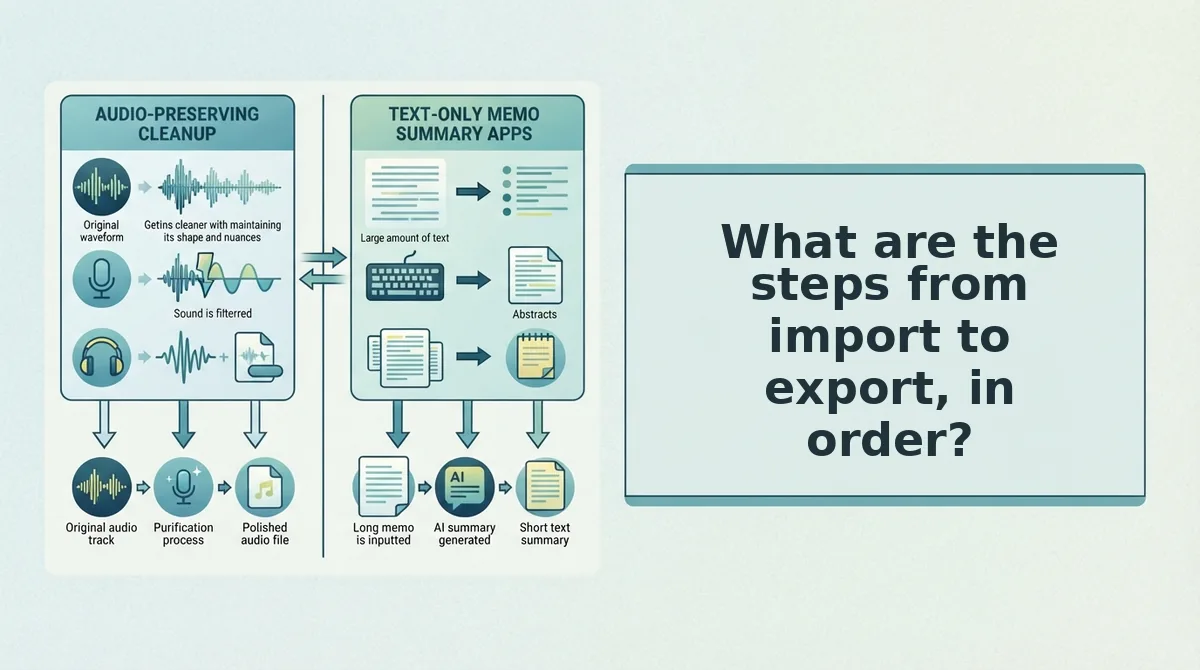
What are the steps from import to export, in order?
There are eight steps, and seven of them are interface actions rather than editing work â which is exactly why the overhead does not shrink when the file gets shorter. Have the recording, a signed-in account, and a project ready before you start.
- Launch Descript and sign in. Open the desktop app or the web editor and wait for the project list to finish loading. You should see your existing projects, not a blank spinner.
- Create or open a project. Click New project for a fresh file, or open an existing one if the note belongs with other material. You should land in the editor with an empty timeline.
- Import the recording. Drag the audio file into the media panel, or use Upload and select it from disk. You should see the file listed in the media library and a clip appear on the timeline.
- Transcribe the file. Start transcription and let it run to completion â this is the step most sensitive to file length and connection speed, so note your own time here rather than trusting a figure. You should see a word-level transcript beside the waveform.
- Remove filler words. Run the filler-word removal action on the transcript. You should see the ums, uhs, and stray "you know"s disappear from the text and the timeline shorten to match.
- Review the transcript and fix what is left. Read through and delete remaining false starts and repeats; use Regenerate when a line needs redoing rather than patching word by word. Regenerate is a fix inside the editing suite, so it adds a step to this flow rather than removing one. For grammar that survived the filler pass, the guide to fix grammar in a voice message covers the patterns worth correcting.
- Export the audio. Click Export, choose an audio format, and let the render finish. The maths stops being obvious here: this is a distinct timed step, not an instant save. You should see a completed download or a ready-to-copy link.
- Share or download. Copy the link or save the file locally, then confirm it plays from the destination. You should hear the cleaned version, not the original.
How do you check the cleanup worked before exporting?
Read the transcript first â if a filler or a garbled phrase is still there in text, it is still there in audio. Then listen once end to end, not in fragments, because repeated words and awkward joins only show up at speed. Finally confirm the export format matches what the recipient can open, and play the rendered file itself rather than the timeline preview.
Knowing the steps is half the answer; the other half is deciding whether a 60-second note belongs in this flow at all.
When does a 60-second note belong in Descript and when does it not?
A 60-second note belongs in Descript only when it has to become an asset: captions, publishing, reuse, or several takes stitched together. For one message to one recipient, the project setup and export queue cost more attention than the cleanup does.
Sort the file with two questions first: how many recipients, and how many takes?
| Decision factor | Lane A: browser cleanup | Lane B: Descript editor |
|---|---|---|
| Recipients | One person, one send | Audience, team, or client list |
| Captions or publishing | Not needed | Required |
| Takes | Single take, sent as recorded | Three takes to cut and assemble |
| What you pay in overhead | No project, no export queue | Project setup, transcription, render |
| Best for | A consultant sending one 52-second client update | The same consultant with three takes and a caption request |
The decision hinges on recipient count, caption need, and take count, not on how long the recording is. A consultant with a 52-second client update to one client is in Lane A. The same consultant with three takes and a caption request is in Lane B, because the editor is now doing assembly work rather than cleanup.
Descript's own pro-tip video warns that cutting every um and uh can make audio feel robotic, so clean-don't-sterilise holds in both lanes: cut the cluttered fillers and leave the ones carrying timing. If your note is a single pass to a single person, the faster path is to remove filler words from audio in the browser and send it.
Questions readers ask before they start
The recurring questions are about waiting, over-cleaning, and endings that never quite land.
How long does Descript take to transcribe audio?
No figure is published. Descript does not state a transcription duration, and processing time tracks file length, so a sub-minute file is not where the wait comes from â project setup and export are the fixed costs.
How do I decide which filler words to cut?
Cut the cluttered ones: stacked ums, repeated false starts, and fillers bunched mid-sentence. Keep the single um or breath that carries timing between ideas, because Descript's own pro-tip video notes that removing every um and uh can make audio feel robotic.
What if my voice note trails off mid-thought?
Fix it in text before you touch the audio. A trailing ending is a text problem first, so the transcript shows the missing close faster than playback does. Reshape the final sentence there, then re-render â see how to fix a voice note that trails off.
Is there a faster path for one short file?
Yes, when the file is one take to one recipient. Skipping the project entirely removes setup and render from the clock; the cleanup pass is the only step left, which is why a sub-minute message rarely justifies an editor session.
What to do with your next one-minute message
The cost of cleaning a one-minute voice note is not the filler pass â it is the project built around it. That is the finding worth carrying away: setup, transcription, and render are the stopwatch, and cleanup rides along nearly free.
Three moves, in order:
- Time one cleanup on your own machine against the eight-step checklist and write the number down. It becomes a benchmark you own, since no vendor publishes one.
- Sort your next note into Lane A or Lane B before you open a tab. Recipients, captions, takes â that is the whole test.
- Read the transcript before you export. Endings that trail off, and fillers that carry timing, are both easier to judge as text than as audio.
Preserving cadence matters more than a zero-filler transcript, and the last decision is about the recipient, not the waveform. If the answer is one take to one person, clean a voice note in the browser and send it while the thought is still warm.
You can also send clearer async team updates.