
You hit record, walk through the quarter in Hindi in three fluent minutes, and then remember your investors need it in English. Typing it out kills the speed that made speaking worth it, and re-recording in a second language starts the retake loop all over again.
Speaking is faster than typing, but a raw memo in the wrong language stalls. You can translate voice memo in browser tabs you already have open, and translate voice message without app downloads or a three-tool workflow.
Most tutorials stop at transcription or Chrome's Live Translate captions. This guide goes from spoken memo to translated audio that still sounds like you, using an AI voice message translator. It follows a common pattern in voice notes for founders: a Hindi investor update that needs to land in English.
You'll get four steps, a pre-send check, and FAQs. You'll also see why translating raw, unedited audio often backfires, and what to do first instead.
Can You Translate a Voice Memo Directly in Your Browser?
Yes. With VClar you record in a desktop or mobile browser and choose one of 11 target languages. You get back cleaned, translated audio plus a transcript, with no app install. The output keeps your tone, accent, and cadence.
Voice memo translation is the process of converting spoken audio into another language and delivering it as both audio and a written transcript. It differs from caption tools, which only show translated text while someone speaks.
What you need before you start
- A current browser: any up-to-date desktop or mobile browser.
- Microphone permission: the browser prompt that lets a site use your mic.
- Your audio: a live recording, or an existing memo file from your phone. Check the upload screen for supported formats before you export.
One tab versus a three-tool stack
The traditional route chains three tools: a recorder, a transcriber that turns speech into text, and a translator that converts the text. Each handoff means another export, another upload, and another chance for errors. You also usually end up with text, not audio in your own voice.
Think of it like mailing a package through three couriers versus one door-to-door service. Fewer handoffs mean fewer lost details.
Supported languages
VClar covers 11 languages, which works out to 110 translation directions between them:
- Hindi, English, French, Japanese, Korean, German
- Russian, Portuguese, Spanish, Italian, Chinese
See the full pairings on the voice note translator for 11 languages page. Every translation also gets cleaned first: VClar removes filler words before converting your message.
How to Translate a Voice Memo in Your Browser, Step by Step
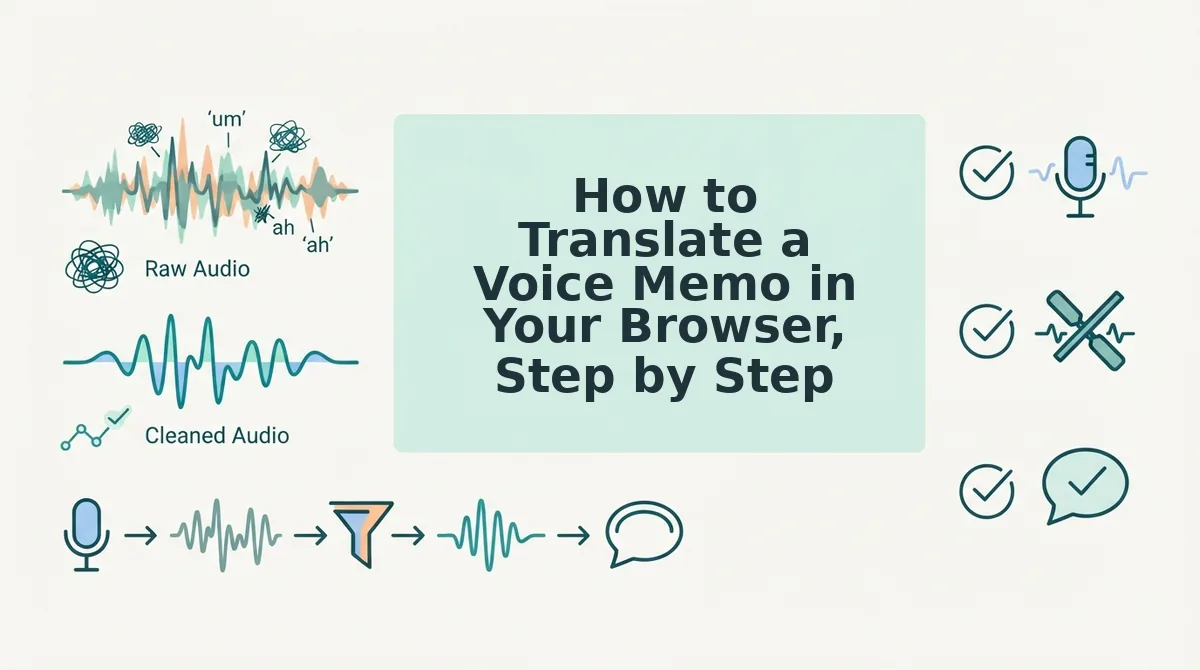
You can translate a voice memo in four steps. Open VClar, record or upload, pick a target language, then review and send. All you need is a browser, microphone access, and your message.
- Open VClar and allow microphone access, or upload a memo.
- Record naturally, without a script.
- Select your target language.
- Review the side-by-side comparison, then send.
Step 1: Open VClar and allow microphone access
Go to VClar in your browser and select record. When the browser asks for permission, click Allow. If you already have a memo from an iPhone or Android recorder app, use the upload option instead. Confirm the file type appears on the upload screen's supported list. This takes under a minute.
Step 2: Record naturally, without a script
Speak the way you would to a colleague. Stop recording when you finish. You should see your recording ready for processing.
Pro tip: One take is enough. Fillers, false starts, and fragments get cleaned automatically, so you can remove filler words from audio instead of re-recording.
Step 3: Select your target language
Choose one of the 11 languages, such as English for a Hindi investor update. VClar cleans and then translates your message.
Step 4: Review the side-by-side comparison, then send
Before you send a translated voice memo, compare the original and cleaned versions side by side. The cleaned version should have filler words removed, spoken grammar fixed, and background noise, breath sounds, and mouth clicks reduced. It should still sound like you, with your tone, accent, and rhythm intact. Play the translated audio once and read the transcript to confirm names, numbers, and key terms came through accurately. If everything matches your intent, download or share the audio and transcript. This review usually takes about as long as the memo itself.
Still stuck? Start here.
- Mic permission blocked: Open your browser's site settings for VClar, set Microphone to Allow, then reload the page.
- Wrong input device: In the same site settings or your system sound settings, select the mic you're actually using, such as a headset instead of a laptop mic.
- Noisy car or street: Noise reduction helps, but hold the phone closer and avoid open windows or loud traffic.
- Long memo: Split it into shorter takes, one topic each, for easier review.
Next, make sure the translation says exactly what you meant.
How to Check Your Translated Memo Worked Before You Send It
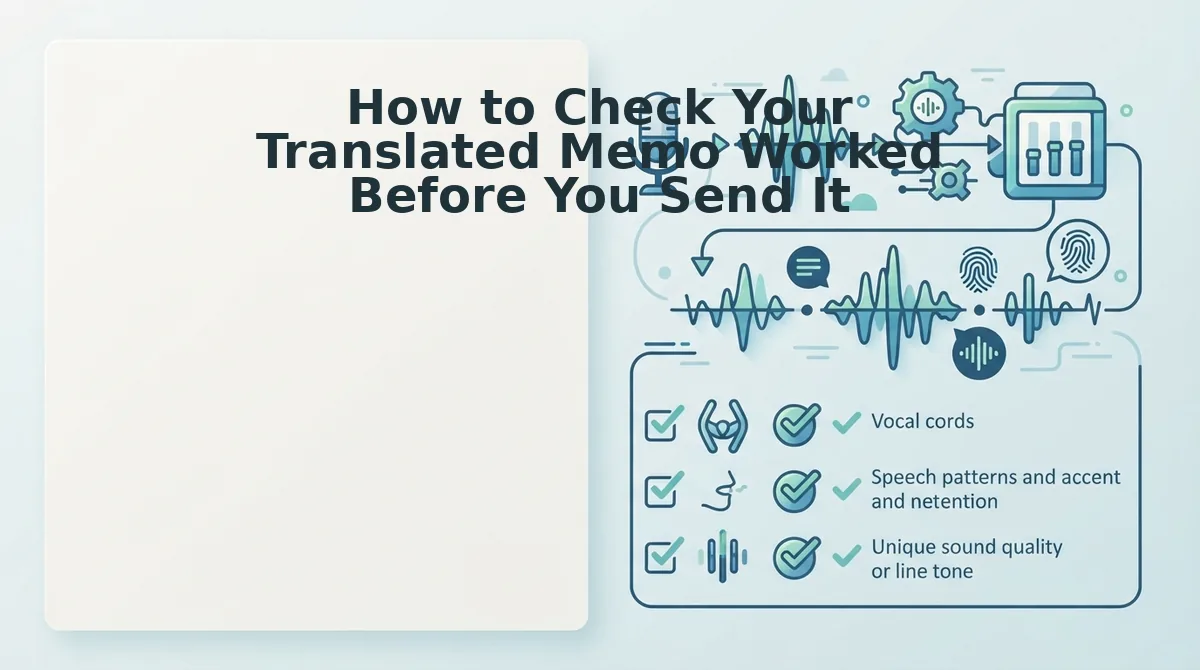
Check three things before you hit send: the transcript says what you meant, the audio still sounds like you, and the output type fits the person receiving it. This check matters because of the order VClar works in. It cleans the memo first and translates second.
Raw fillers, false starts, and half-finished sentences don't disappear in translation. They carry into the target language, where they read even more awkwardly.
What the Cleanup Changes
Before: "Um, so basically I wanted to, like, follow up on the, the pricing. Which we talked about. Last Tuesday."
After: "I wanted to follow up on the pricing we discussed last Tuesday."
The cleanup removed the fillers, dropped the false start, and joined the fragments into one sentence. Spoken grammar correction is the process of fixing errors that only happen in speech, such as broken agreement, restarts, and run-on clauses, while keeping the speaker's meaning.
Pick the Right Output
| Recipient need | Text transcript | Translated text | Translated audio in your voice |
|---|---|---|---|
| Investor update | Strong: easy to skim and archive | Useful for non-native readers | Optional: adds a personal touch |
| Enterprise follow-up | Useful as a written record | Strong: works well in procurement threads | Strong: builds rapport |
| Async team update | Strong: searchable later | Fits multilingual teams | Strong: keeps the team's familiar voice |
- Text transcript: best for founders who need a record their investors can skim.
- Translated text: best for buyers who forward messages internally.
- Translated audio: best for managers whose teams respond to a familiar voice.
Standard text translators are still a good choice when you only need written words. However, they don't clean up speech or give you audio back.
Take a B2B sales rep following up with an enterprise buyer in German. The rep records one take, and VClar removes the hesitations and fixes the spoken grammar before translating the memo into German. The buyer then hears the rep's own tone, accent, and cadence instead of a synthetic clone, along with a clean German transcript to forward to procurement.
If grammar is what makes you re-record, start by learning how to fix grammar in a voice message before you translate it.
Voice Memo Translation FAQ
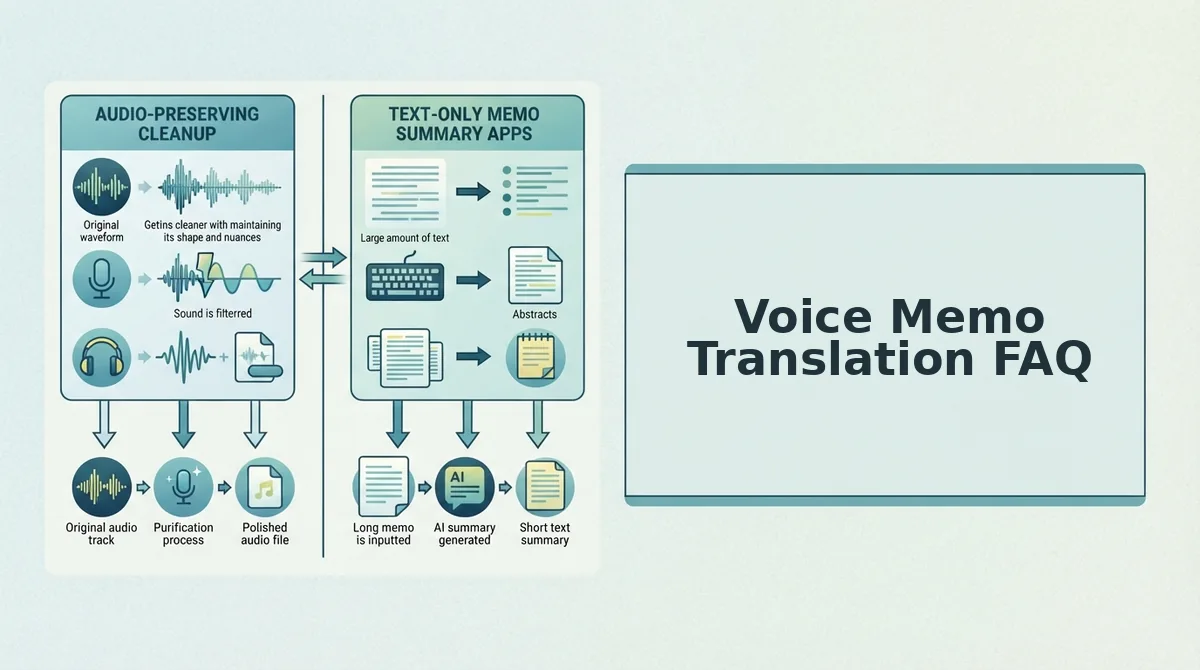
Voice memo translation turns a spoken message into another language. VClar first removes fillers, fixes spoken grammar, and reduces background noise. It then delivers a translated transcript or translated audio that keeps your natural tone, accent, and cadence.
Does translating a voice memo change my voice?
No. VClar keeps your tone, accent, and cadence, so the translated audio still sounds like you. It does not swap your voice for a generic synthetic clone, which helps recipients recognize and trust the message.
Can I translate an existing iPhone or Android voice memo?
Yes. Upload the recording instead of recording a new one. Before uploading, check that your phone's export format is supported, then pick your target language and review the cleaned transcript.
Isn't Chrome Live Translate enough?
Not for memos you send. Chrome Live Translate is built to translate audio or video you are watching. One tutorial on it has 24,817 views, which suggests many people expect it to do more. It doesn't clean up or produce a memo for someone else.
How do I translate WhatsApp voice notes to English?
Save or export the WhatsApp voice note to your device. Upload it to VClar and choose English as the output. Then copy the translated text or send the translated audio back into the chat.
Does it work on mobile browsers?
Yes. VClar runs in both mobile and desktop browsers, so you can record, clean, and translate a memo on your phone without installing an app.
Send Your First Translated Voice Memo
Your first translated memo takes one take: record it, let VClar clean it, choose the language, check the transcript side by side, and send it. The key finding from this guide is that cleaning before translating is what makes the translated version read naturally.
Picture a cross-border consultant sending a client update in Spanish. They talk through the project once, rambling included. VClar tightens the message and translates it, and the client hears the consultant's real voice in fluent Spanish.
- Record or upload your next memo in your own language.
- Compare the original and translated transcripts before choosing an output type.
You can stop re-recording until every sentence is perfect. Record your first memo in the browser.