
You already recorded it. Don't record it again. Upload your MP3, WAV, or M4A file and let VClar remove fillers and fix spoken grammar. Pick one of 11 target languages, then review and export the translated audio and transcript. Your original take stays usable, with your natural tone, accent, and rhythm intact.
Picture a founder who records an investor update as an MP3 in the car, then needs it in another language. Re-recording means a quiet room, a second take, and the same energy twice. The faster move is to translate uploaded MP3 voice message files you already have.
Keeping the file is the right instinct. This guide shows you how to turn it into translated audio plus a text transcript without a retake. The same workflow powers voice notes for founders.
You'll follow four steps: upload the file, clean it, choose a target language, then review and export. Along the way, you'll learn why some raw translations sound off even when every word is right. The cause sits in the original recording, and the fix comes later in this article.
What Do You Need Before You Upload a Voice Message?
You need three things: a short voice message saved as MP3, WAV, or M4A, a known source language, and a chosen target language. With those ready, the upload takes only a few clicks.
Source language is the language you spoke in the recording. Target language is the language you want the listener to hear. Translation direction is the pairing of the two, such as Hindi to English or French to Japanese.
Think of translation direction like a train ticket. It names where you depart and where you arrive, and the ticket works in only one direction. VClar supports 11 languages: Hindi, English, French, Japanese, Korean, German, Russian, Portuguese, Spanish, Italian, and Chinese. That adds up to 110 possible translation directions.
Keep each file to a single message rather than a long meeting recording. VClar is built for short voice messages.
| Recording source | Typical format | Action |
|---|---|---|
| Phone voice memo app | Varies by app. Check the file extension in file info. | Upload directly if the file is MP3, WAV, or M4A. |
| Android recorder app | Varies by device and app settings. | Confirm the extension, then upload or convert. |
| WhatsApp export | Confirm the extension after sharing the note. | Convert to MP3 if the file isn't MP3, WAV, or M4A. |
Converting WhatsApp Voice Notes to MP3
Open the chat and select the voice note. Use your phone's share option to save it to your files, then check the file extension.
If the file isn't MP3, WAV, or M4A, run it through any audio converter and export it as MP3. Many tutorials stop at this point. Your next step is to upload the converted file for cleanup and translation.
Before you start, confirm that your language pair is covered on the voice note translator page.
How to Translate an Uploaded MP3 or WAV Voice Message Step by Step
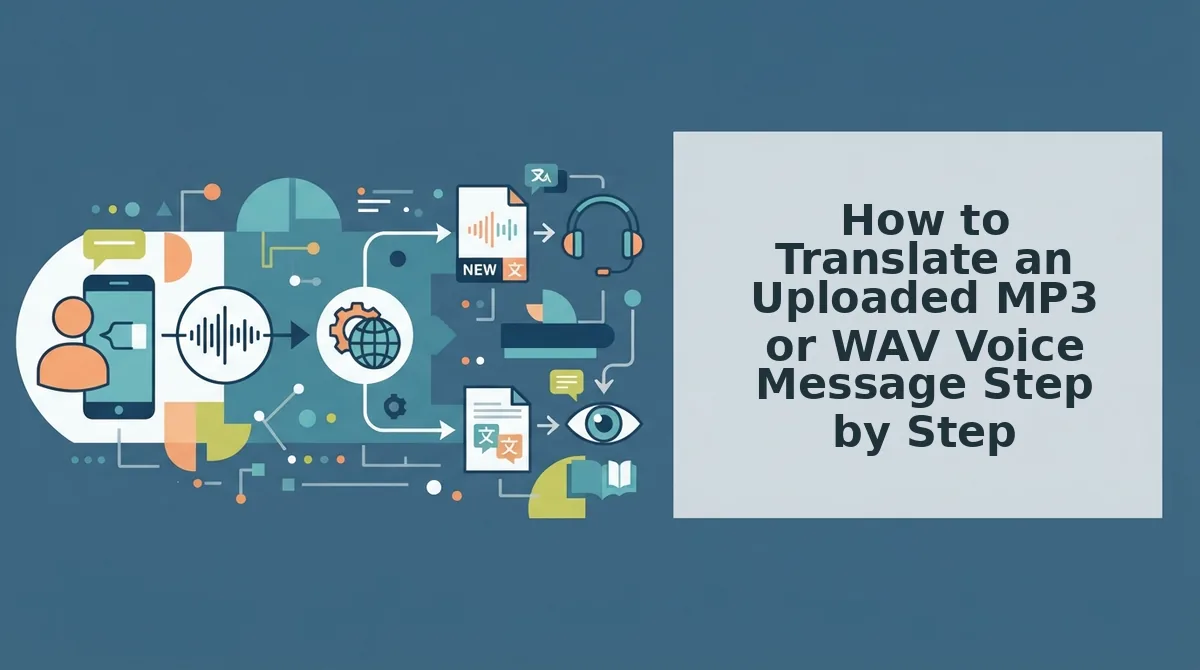
To translate an uploaded voice message, you upload the file, clean it, choose a target language, and then review and export the translated audio and transcript. Cleanup comes before translation, so the translation works from a tight, clear message.
Translating an uploaded MP3 or WAV voice message in VClar takes four steps. First, upload your MP3, WAV, or M4A file. Second, clean it: the tool removes verbal fillers, fixes spoken grammar, tightens phrasing, and reduces background noise, breath sounds, and mouth clicks. Third, choose one of 11 target languages. Fourth, review and export the translated audio plus a transcript. Because cleanup happens first, the translation carries your message without the hesitations, and your tone, accent, and cadence stay recognizably yours.
Before you begin: have your audio file saved on your device, and know which language you spoke and which language your listener needs. Labels in the live product may differ slightly from the descriptions below.
- Upload the file. Open VClar and add your MP3, WAV, or M4A file in the upload area. Selecting the file takes under a minute. You should see your file loaded and ready for processing.
- Clean the recording. Run the cleanup pass before translating. Verbal fillers are sounds and phrases that carry no meaning, such as "um," "ah," "like," and "you know." Spoken grammar correction fixes the grammar slips that happen when you think out loud, such as a sentence that starts one way and finishes another. VClar also removes false starts, breath sounds, and mouth clicks. When cleanup succeeds, the message sounds decisive and keeps your natural delivery. If filler words force you into re-recording loops, use the cleanup step to remove filler words from audio on any file you already have.
- Choose the target language. Select the language your listener speaks from the 11 supported options. Picking a language takes a few seconds. Your translation direction is now set, for example English to German.
- Review and export. Play the translated audio and read the transcript alongside it, which takes about as long as the message itself. Then export both files. Success means you receive translated audio plus a transcript, not text alone.
Consider a B2B sales rep who sends a follow-up to an enterprise buyer. Cleanup strips out the "basically, you know" before translation, so the buyer hears a tight message in their own language. Teams that rely on this workflow can explore voice notes for sales.
Once you've exported the files, run a quick quality check.
How Do You Check That the Translation Worked?
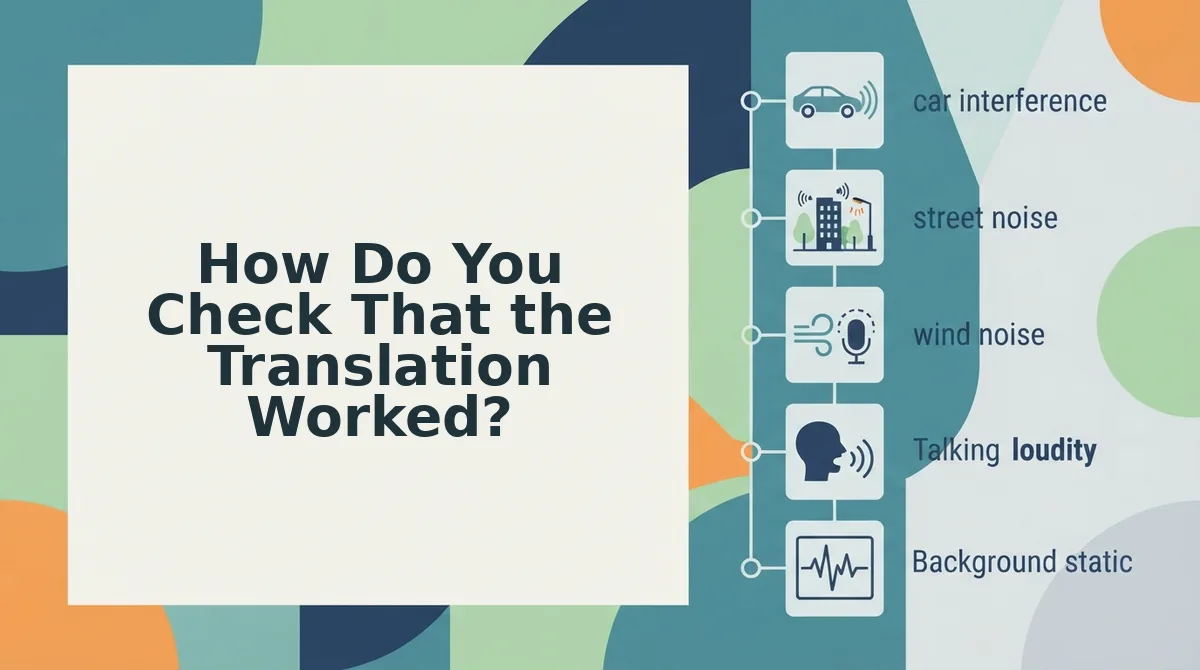
Read the translated transcript, play the translated audio, and confirm both the target language and that the voice still sounds like you. If all three pass, the message is ready to send.
Translation verification is a short review that confirms the translated transcript and audio carry the speaker's meaning, in the right language and in the speaker's own voice.
Start With the Source: Clean, Then Translate
First, confirm the source was cleaned before it was translated. A translation engine converts what it hears, so fillers, false starts, and half-finished fragments carry over literally and produce garbled output.
Photocopying a stained page works the same way, because the copy reproduces every stain. Cleanup removes the stains before the copy is made. That is why VClar strips fillers and helps you fix grammar in a voice message before it translates anything.
Illustrative example (not real user data):
- Before cleanup: "So, um, the, like, the draft is, uh, basically, I'll send it Friday, I mean Thursday."
- After cleanup: "I'll send the draft on Thursday."
If you translate the first version, the listener gets every hesitation plus two conflicting days. If you translate the second, they get one clear instruction.
The Three-Point Check Before Sending
- The transcript reads as full, complete sentences.
- The audio still sounds like the speaker, with the same tone, accent, and rhythm.
- The target language is correct and the translation direction is not reversed.
If you don't speak the target language, compare the cleaned source transcript with the translated transcript and check that the same names, dates, figures, and requests appear in the same order. Shifted details such as a wrong deadline or a dropped name cause the most real-world trouble, so confirm each one appears in both versions instead of judging grammar you can't read. Then play the audio to confirm you hear your own voice and not a synthetic replacement.
VClar is built for short voice messages. For long podcasts or multi-speaker editing, a timeline editor is the better tool. See VClar vs Descript for the differences.
FAQ About Translating Uploaded Voice Messages
These answers cover the most common questions about output, languages, accents, and WhatsApp files.
Can I get translated audio, not just translated text?
Yes. VClar returns translated audio in your own voice along with a written transcript. WhatsApp's in-app tools and Google Translate return text, and AudioPen produces text summaries. With both audio and a transcript, recipients can listen to you or skim the text.
Which languages can I translate a voice message into?
VClar supports 11 languages and 110 translation directions. The languages include Hindi, English, French, Japanese, Korean, German, Russian, and Portuguese. Any supported language can serve as the source or the target, so you can turn a Hindi note into German as easily as English into Japanese.
Will the translated voice message keep my accent?
Yes. VClar preserves your tone, accent, and rhythm in the translated audio and does not swap in a synthetic voice clone. The listener hears a cleaner version of you speaking another language, so the message stays personal and recognizable.
How do I translate WhatsApp voice notes to English?
Export the voice note from WhatsApp and convert it to MP3, WAV, or M4A if needed. Then upload it to VClar and choose English as the target language. A freelancer sending a client update, for example, can share the translated audio and transcript together. See voice notes for freelancers.
Translate the Voice Message You Already Recorded
You don't need to re-record anything, because the file already on your phone is the starting point. The finding this article promised is that translation quality depends on speech quality: clean audio produces clear translations.
Work through these steps in order:
- Confirm your file is an MP3, WAV, or M4A.
- Clean the recording first, then choose your target language.
- Check the transcript and play the audio before you send.
The translated audio keeps your tone, accent, and rhythm, so the recipient hears you rather than a synthetic stand-in.
Your next step is to upload your MP3, WAV, or M4A voice message at VClar and translate it. Record it once, in your own voice, and send it in any of 11 languages.