
The upload bar hits 100 percent, then a wall of text appears where a listenable file should be. Your recording did not fail. The destination did.
Most voice note tools that accept mp3 wav and m4a files are describing what they will swallow, not what they will hand back. Acceptance is not capability: transcription-first tools ingest all three containers and return text only, because their pipeline ends where yours begins.
You get two answers here that format listicles skip â a compatibility verdict across the categories that genuinely ingest all three files, and an output contract showing what actually comes back. Plus an upload order for the three formats.
One pattern runs through nearly every homepage claim in this category: the format list is answering a different question than the one you asked. We return to it below.
For work where the output has to be audio, VClar's AI voice message translator runs the pipeline the other direction â cleaned speech in, cleaned speech out.
Which voice note tools accept MP3, WAV, and M4A files for cleanup?
Four categories genuinely ingest all three containers: free Whisper-based transcription tools, note apps such as Voicenotes, desktop audio editors, and voice-message cleaners like VClar. The input column is where they agree; the output column is where they split.
The three formats are not your differentiator â the output is. Transcription tools, note apps, and editors all open MP3, WAV, and M4A, yet only a cleaner returns cleaned audio as audio. Pick the tool by what you need back, then confirm it takes your file.
| Tool category | Formats accepted | What comes back | Original container survives? |
|---|---|---|---|
| Whisper-based free transcription tools | MP3, WAV, M4A | Text transcript | No â nothing is re-encoded |
| Note apps (Voicenotes import) | MP3, WAV, M4A | Searchable notes and summaries | No â the audio becomes a text destination |
| Desktop audio editors | MP3, WAV, M4A | Project files and exported renders | Rarely â exports usually land as a new file |
| Voice-message cleaners (VClar) | MP3, WAV, M4A | Cleaned audio plus transcript | Often â but check the export container |
Best for searchable archives: Whisper-based tools and Voicenotes, which are strong at turning a pile of memos into text you can search. Best for frame-level surgery: desktop editors, which give you waveform control a one-click cleaner won't. Best for sending the file onward: a cleaner, because the deliverable is audio.
If the goal is a message you can hit send on, the question stops being which format the tool accepts and becomes whether it re-renders the waveform at all. Only the last row of that table does. A cleaner like VClar's remove filler words from audio pipeline deletes the ums and false starts from the audio itself, so what lands in your recipient's queue is a shorter file that still sounds like you â same voice, same accent, fewer detours.
The container question is downstream of that. Decide the output first; the input format is the easy half.
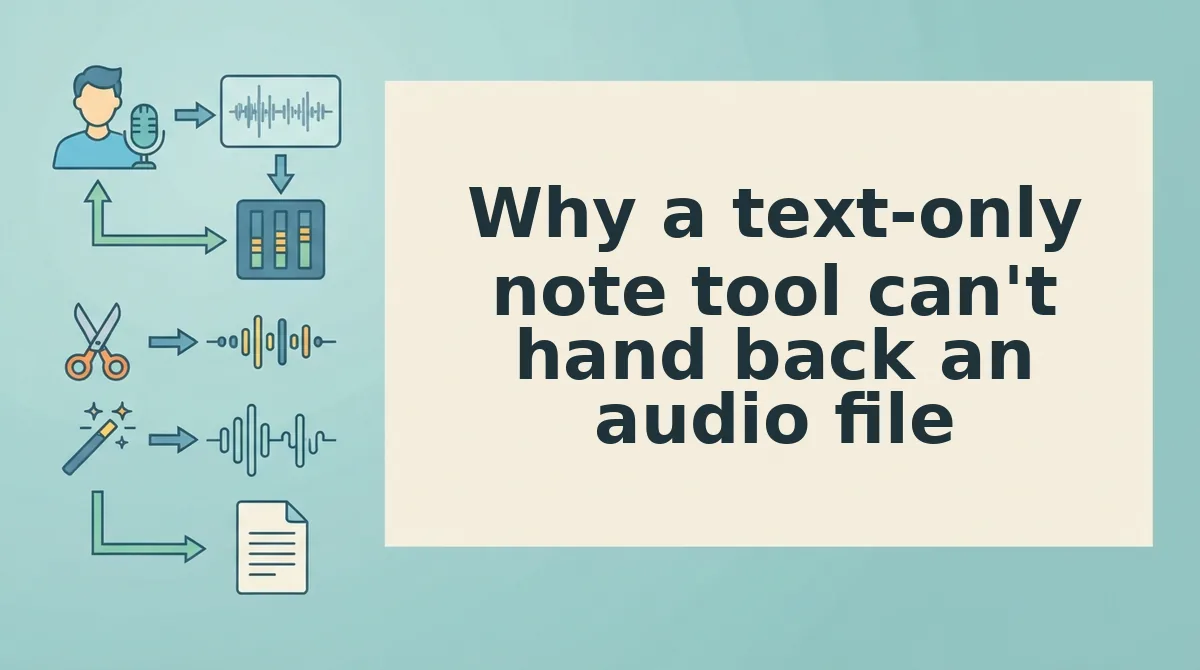
Why a text-only note tool can't hand back an audio file
A transcription pipeline is a chain of conversions that ends in characters, not in audio samples. Ask it for a cleaned voice note and you have asked a translator to read your letter aloud, then expected the original paper back.
Every audio tool runs five stages. Call them the Content Pipeline:
- Format â the tool identifies the container holding your file.
- Decode â the compressed stream is expanded into raw audio samples.
- Process â speech recognition converts those samples into words.
- Re-encode â edited samples are compressed back into a container.
- Deliver â the finished file leaves the tool.
Transcription stops after stage three. Once the samples become words, the waveform is discarded, so stages four and five have nothing to operate on. The tool didn't break; it never had a copy to rebuild.
Two terms get conflated here. A container is the box â MP3, WAV, M4A â while a codec is the compression method stored inside that box, a distinction Techquickie's audio formats explainer lays out plainly. That matters because word-level timestamps from a recognition pass are approximate, measured in fractions of a second. Trimming a filler reliably needs sample-accurate alignment, which a summariser never computes.
Practical version: a founder records an investor update on an iPhone, which saves it as .m4a. Upload the original .m4a, not a copy that has been pushed through a messaging app â that compression is baked in before cleaning starts, and no later stage can undo it. See voice notes for investor updates and, if your grammar is the problem rather than your fillers, how to fix spoken grammar in a voice message.
With the output contract settled, the steps themselves are short.
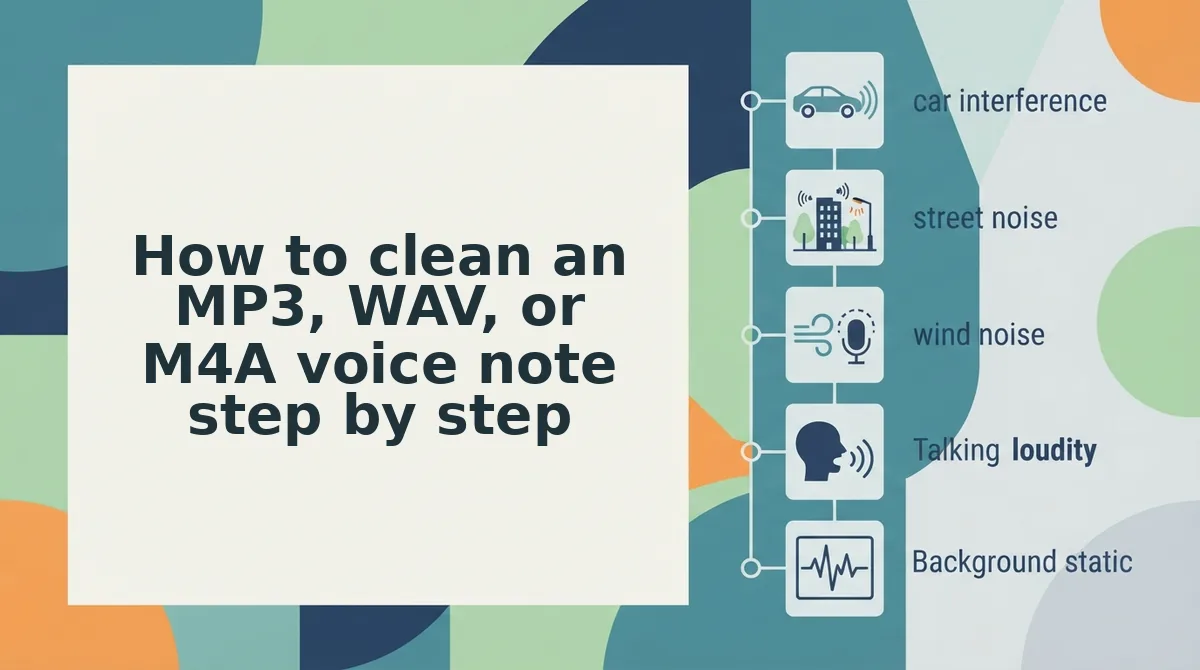
How to clean an MP3, WAV, or M4A voice note step by step
You need three things before you start: one original recording, a tool you have already checked for audio output rather than text-only output, and a decision about which container you want back. A ten-minute memo takes under five minutes end to end.
- Decide the output before you upload. Write down whether you need audio, a transcript, or both, and in which container. You should be able to name the exact file type you expect to find in your downloads folder.
- Rank your source file by fidelity: WAV first, M4A second, MP3 last. Cleaning involves a decode and a re-encode, and the re-encode is the one irreversible stage, so start from the least-compressed copy you own. Most phone recorders default to M4A, which is why it dominates uploads, per the Neonway Easy Audio Recorder walkthrough.
- Convert anything exotic to WAV, not MP3. WhatsApp voice notes export as Opus inside an OGG container, which is none of the three advertised formats. Converting to MP3 stacks a second lossy encode on top; converting to WAV does not. Allow two minutes for a converter.
- Upload the original, not the forwarded copy. Select the file straight from the recorder's folder rather than a message thread. You should see the filename and duration match the recording you made.
- Clean the note. Run filler-word removal and grammar correction, then preview the result at each cut point. You should hear no clipped consonants or mid-word jumps where an "um" was lifted out.
- Verify the return. Confirm the container and duration of the downloaded file, then compare it against the output contract you read earlier. You should have the same runtime within a second or two, in an audio format you can play.
If the cleaned note is heading to a client or a hiring manager, run the same routine described in clean up a voice memo before sending, which covers clarity checks beyond fillers.
Common questions about MP3, WAV, and M4A voice notes
These are the questions the format comparison does not settle, answered short enough to act on immediately.
Does re-downloading a cleaned voice note cost quality?
Yes, slightly, and only on the re-encode. Decoding is lossless; writing the cleaned audio back out is where generation loss enters. Each additional round trip through a lossy container compounds it, so clean once from the original rather than cleaning an already-cleaned file.
Is there a file size or length limit that blocks a 20-minute memo?
Often yes, because WAV is uncompressed PCM and grows roughly ten times faster than MP3 for the same runtime. A 20-minute WAV hits upload ceilings well before the identical memo as M4A. Check the limit, then upload M4A if WAV is rejected.
Why did a tool accept my M4A file but return only a summary?
Because it transcribed rather than cleaned. Transcription decodes your file all the way down to text and discards the waveform, leaving nothing to re-render into audio. The upload succeeded; the tool simply has no audio path in its pipeline.
How do I clean a WhatsApp voice note I have already sent?
Export it, convert the Opus-in-OGG file to WAV, then upload that. No advertised MP3/WAV/M4A tool ingests OGG directly, and converting to MP3 adds a lossy step you do not need. After cleaning, you can translate a cleaned voice note if the recipient speaks another language.
The format you upload matters less than what comes back
Compatibility is the entry ticket; the output contract is the decision. Every tool in that comparison will take your file, and only some will hand audio back, which is why the yes/no answer to "does it accept M4A" was never the question worth answering.
One line settles most cases: do you need audio back, does the container matter to where it is going, and is the source already compressed? If the answer to the first is yes and your file is a WhatsApp export, convert to WAV, upload, and verify the return.
Three things are worth doing next. Run one clean upload on a real voice note you would otherwise re-record, so the pipeline stops being theoretical. Hold the downloaded file against the output contract and confirm container, duration, and cut points. Then read which file types you can upload before your next recording, so the source is right at capture time instead of fixed afterward.
Upload a voice note to VClar and listen to what comes back. WAV over M4A over MP3, plus a WAV conversion for Opus files, is the entire upgrade, and it takes one upload to hear the difference.
You can also compare voice editing tools.