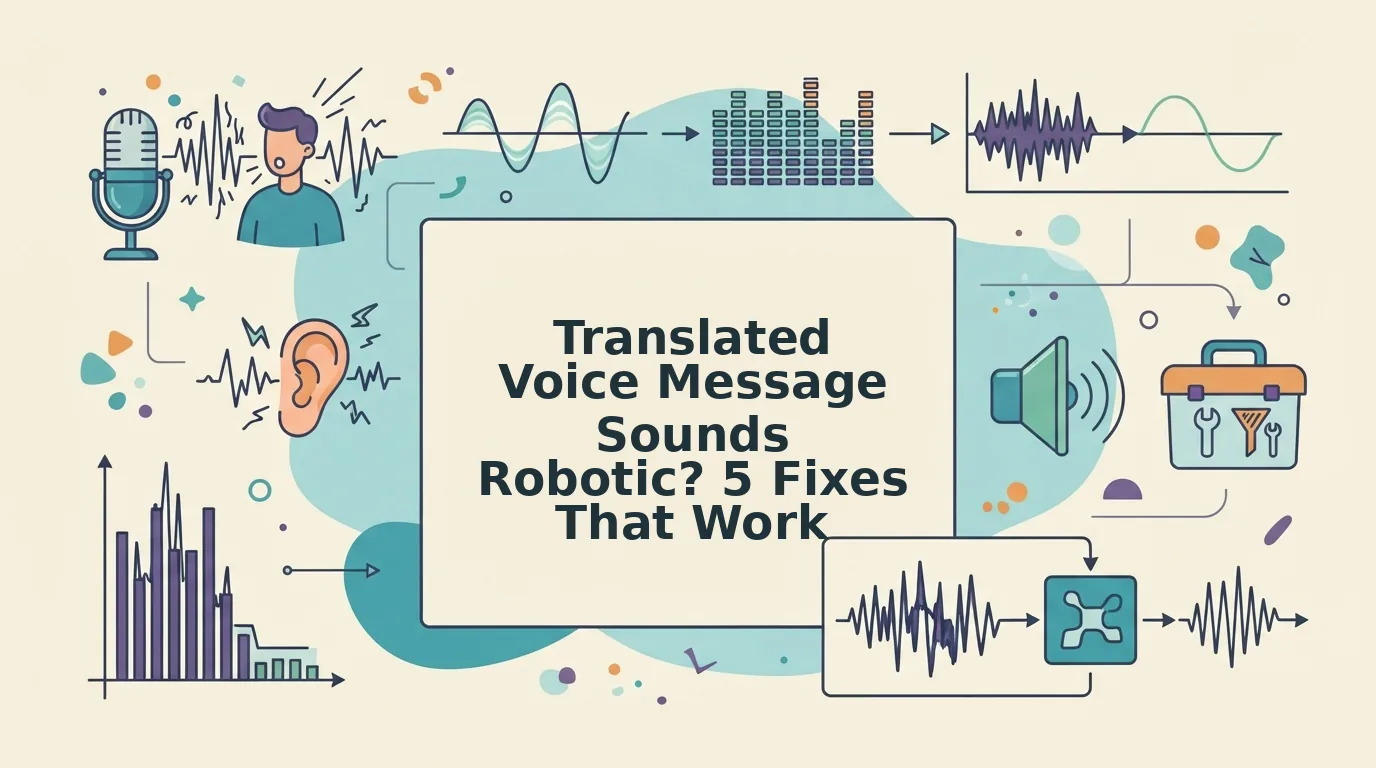

You recorded a quick voice note, ran it through a translator, and hit send. The words were correct and the grammar held up. But the reply came back confused, because the translated voice message sounds robotic and nothing like you.
That reaction makes sense. Most tutorials stop once your speech becomes text. You already followed the standard "tap translate" advice and still got a flat, synthetic result, because nobody addressed the audio half of the job: what the recipient actually hears.
This guide diagnoses the symptom before it recommends any tool. You will learn the three pipeline stages where robotic quality creeps in. You will also get five corrective steps in the order the pipeline runs and a way to confirm the fix worked.
One finding surprises most people. The robotic sound often starts before translation runs, inside the recording itself. Read the diagnosis first, then choose a voice message translator that keeps your voice intact.
Why Does a Translated Voice Message Sound Robotic?
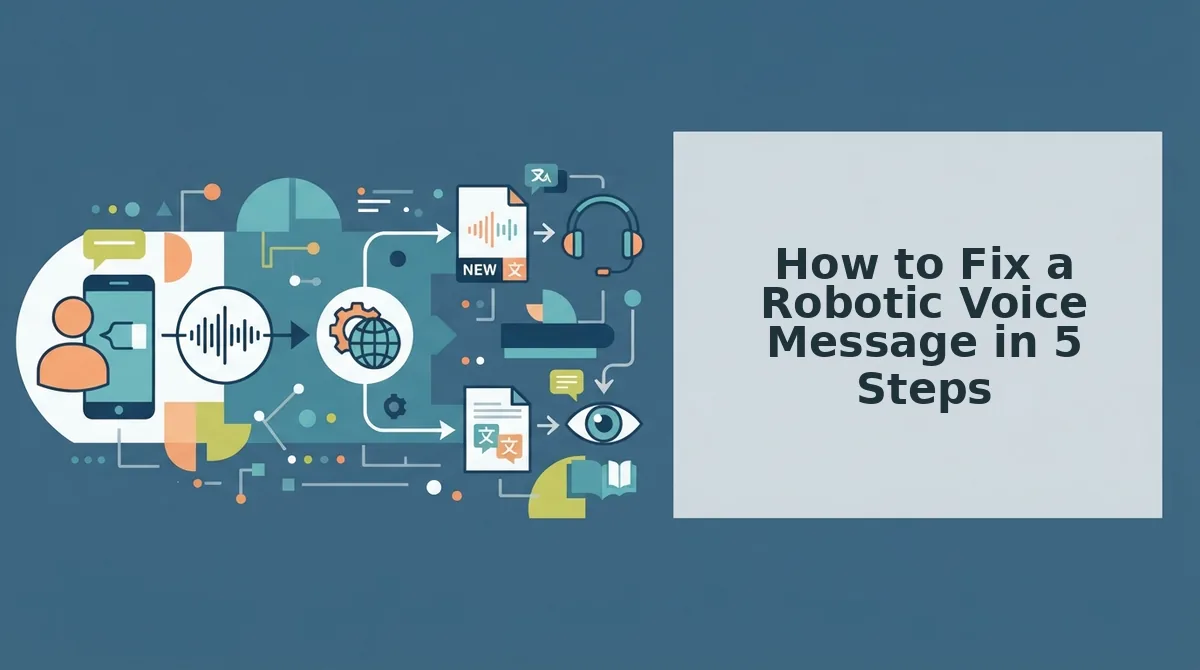
A translated voice message sounds robotic because three separate stages each remove part of how you actually spoke. The problem is not one failure. It is three failures, stacked.
Robotic voice translation is flat, synthetic delivery. It happens when a voice message passes through speech recognition, machine translation, and text-to-speech in sequence. Each stage discards natural speech cues such as pauses, spoken register, and pitch, until the output no longer sounds like the original speaker.
- Speech recognition (transcription). This stage converts your audio to text. In the process, it strips out the pauses and punctuation cues you used to mark where sentences end.
- Machine translation. This stage converts the text into another language. It flattens your casual spoken register into neutral written phrasing, which is the source of unnatural machine translation phrasing.
- Text-to-speech (re-speaking). This stage converts the translated text back into audio. It discards your original pitch contour, meaning the rise and fall of your voice, and generates a new one.
Think of it like humming a song to a friend, who writes down the notes and hands them to a stranger to sing. The notes may be right, but the feel belongs to someone else.
The synthetic seam is the audible break between a speaker's natural voice and machine-generated speech. You hear it when text-to-speech replaces the original pitch, timing, and emphasis with a generic pattern. It shows up as evenly spaced words, misplaced stress, and pitch that rises or falls in the wrong places. Prosody carry-over is the opposite outcome. Prosody is a speaker's rhythm, intonation, and emphasis. With prosody carry-over, those qualities survive translation, so the message sounds like the same person speaking another language with their accent and cadence intact.
Getting to prosody carry-over depends on three inputs: clean source audio, complete sentences, and a single delivery pass that keeps your voice instead of re-speaking it. VClar works on those inputs directly. It removes filler words, fixes spoken grammar, and reduces background noise, then translates across 11 languages while preserving your natural tone and accent.
How to Fix a Robotic Voice Message in 5 Steps
To fix a robotic voice message, clean the source audio, complete your sentences, skip text-to-speech re-speaking, then check the delivered audio. Run these five steps in the same order the translation pipeline runs.
Before you start: Have your original recording, headphones, and a translator that cleans and translates your own voice instead of replacing it.
- Remove filler words and false starts before you translate. Disfluencies break the pause cues a transcriber uses to find where each sentence ends, so clean them first. Use a tool built to remove filler words from audio, such as ums, "like," "you know," and repeated restarts. Expected outcome: the transcript shows clear sentence breaks instead of one run-on block.
- Repair sentence fragments. A fragment gives the translator no subject and verb to anchor tense, so the translated grammar drifts. Rewrite or re-record fragments as full sentences, or fix grammar in a voice message automatically. Expected outcome: every sentence has a clear subject, a verb, and a consistent tense.
- Skip the text-to-speech re-speak. Listeners hear text-to-speech output as a deliberately synthetic artifact, not as you. Choose a translation that keeps your recorded voice rather than generating a new one. Expected outcome: the translated audio keeps your pitch, accent, and pacing.
- Listen for leftover fillers and choppy cuts. Treat any remaining fillers as an input-quality signal, not a personal habit. They show where the source needs another cleaning pass. Choppiness usually comes from cutting audio around fillers without smoothing the joins. Time: one full listen-through at normal speed. Expected outcome: no clipped words and no abrupt silences.
- Check the audio separately from the transcript. An accurate transcript does not guarantee natural delivery, because the recipient hears tone and timing, not the words on screen. Play the final audio without reading along. Expected outcome: the message sounds like you speaking another language, not like a voice reading a script.
Once all five steps are done, it is time to confirm the robotic quality is actually gone.
How to Check the Robotic Quality Is Actually Gone
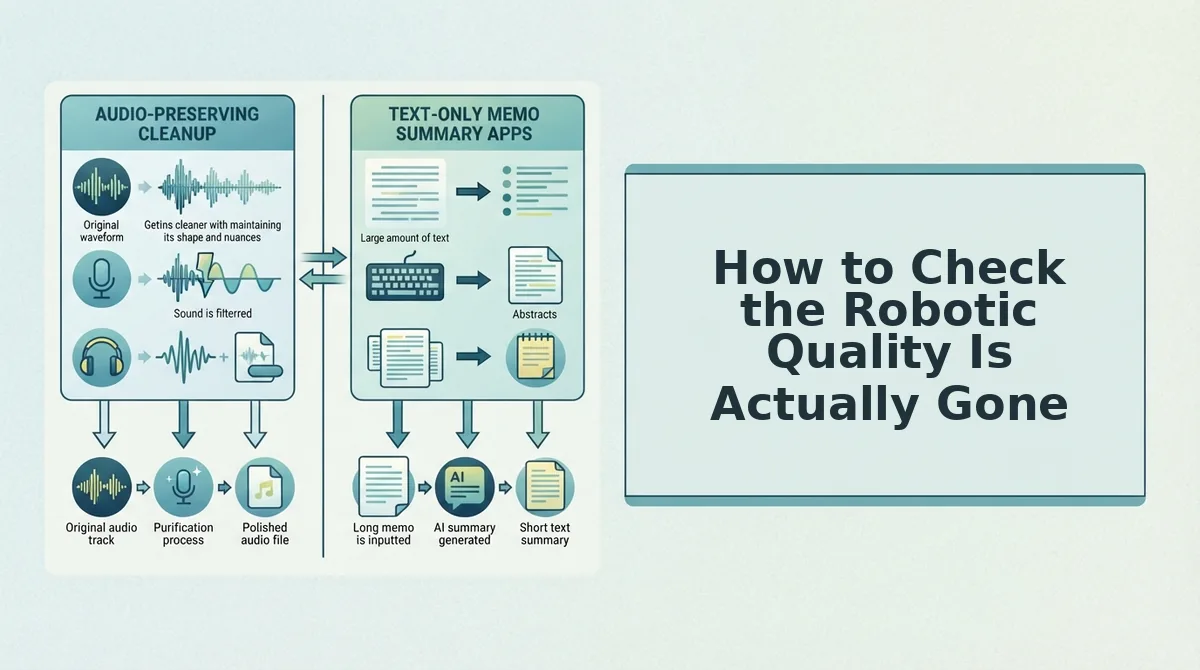
Run three listening checks: pitch contour, sentence rhythm, and phrasing. Each check maps to one stage of the process, so a failed check shows you which step to rerun.
- Pitch contour. Listen for whether the output rises and falls in the same places as the original or sits on one flat line. A flat line means the tool generated a replacement voice, which is a tool limitation rather than a source-audio problem.
- Sentence rhythm. Check whether pauses land where the meaning breaks or where the engine decided to breathe. Misplaced pauses usually come from fillers left in the source, and you can still remove those.
- Phrasing. Ask whether the output sounds like a person saying the idea or like words matched one for one. Literal phrasing means the translator received fragments, so fix the grammar in the source first.
To test any voice message translator in about 60 seconds, put on headphones and play the source recording and the translated output back to back. Score pitch contour, sentence rhythm, and phrasing as pass or fail. A failed pitch check points to the tool, because it is re-speaking you instead of enhancing your recording. A failed rhythm or phrasing check points to the source audio, which you can still fix. Rerun only the step that failed, not the whole pipeline.
If rhythm keeps failing, compare editing suites vs. one-pass voice cleaning. VClar cleans and translates in one pass, so you don't have to edit cut by cut.
Common Questions About Robotic-Sounding Voice Notes
Most robotic-sounding voice notes trace back to how the source audio was edited and segmented, not to the target language. These answers cover what the steps above leave open.
How do I translate a WhatsApp voice message?
Share the voice note out of WhatsApp into a voice message translator, clean and translate it there, then send the result back into the chat. Cleaning the audio before you translate it keeps your tone intact. This guide shows how to translate a WhatsApp voice message without re-recording it.
Why does my voice note sound choppy after editing?
Choppiness comes from cutting audio around detected fillers without crossfading the timeline. Every removed "um" leaves a hard edge where two waveforms meet abruptly, and your ear hears that edge as a skip. Tools that blend the timeline after each cut keep the message sounding like one continuous take.
Do filler words lower voice message translation accuracy?
Yes, and the effect is mechanical, not stylistic. Hesitations, false starts, and restarts interrupt the pause cues a transcriber uses to split speech into sentences. Badly split sentences reach the translator as fragments, so tense and agreement drift. Removing fillers before translation gives the engine clean sentence boundaries.
How many languages can a cleaned voice message be translated into?
VClar translates cleaned voice messages across 11 languages, which covers 110 translation directions. The languages include Hindi, English, French, Japanese, Korean, German, Russian, and Portuguese. The full list of 11 languages and 110 translation directions shows every supported pair.
Keep Your Voice in the Translation
The translation itself never made your message sound robotic. The robotic sound came from the stage that rebuilt your voice after the words changed.
A tool that enhances your original recording removes the synthetic seam entirely, because it never generates a new pitch contour. A tool that re-speaks a cleaned transcript can only approximate you. That is why the robotic artifact survives every round of editing, no matter which setting you adjust.
For your next message, record it once and clean it before you translate it. First remove filler words from audio so the translator receives complete sentences. Then run the clean recording through VClar's voice note translator. Play both versions back to back and run the three checks.
Your accent, cadence, and timing are what make a message sound like you. Keep them in the recording, and the translation will carry them into the new language.
You can also translate a voice message.